
Symptom
When setting up Sync Map Rules under a PowerSyncPro Sync Profile, the distinguishedName (dn) attribute does not appear as a selectable target option in the dropdown list.
Cause
In Active Directory, distinguishedName is a system-calculated, read-only attribute managed entirely by the directory itself. AD does not allow external applications, APIs, or sync engines to write to or modify the distinguishedName attribute directly.
Because PowerSyncPro enforces Active Directory schema rules, distinguishedName is intentionally omitted from the Target Attribute dropdown lists. AD automatically calculates an object's Distinguished Name using:
- The Relative Distinguished Name (RDN): Calculated from the
cn(Common Name) attribute (e.g.,CN=First Last). - The Parent Container: The Organizational Unit (OU) path where the object is written or moved.
Resolution
To change or format an object's target Distinguished Name, you must manipulate the attributes that AD uses to calculate it.
Option 1 — Update the left-hand portion of the DN (the CN=)
If you need to change the Relative Distinguished Name (the left-most segment of the DN):
- In your Sync Profile, map your source attribute (or custom format) to the target
cnattribute. - Save and run your job. PowerSyncPro will write to the target
cnattribute, and Active Directory will automatically update and recalculate the correspondingdistinguishedNamein the target directory.
Option 2 — Apply a naming convention via a complex expression
If you need to enforce a custom formatting rule for the CN (such as FirstName.LastName or converting to lowercase):
- Navigate to Settings > Complex Expressions and click Create.
- Construct your formatting expression using C# syntax (e.g.,
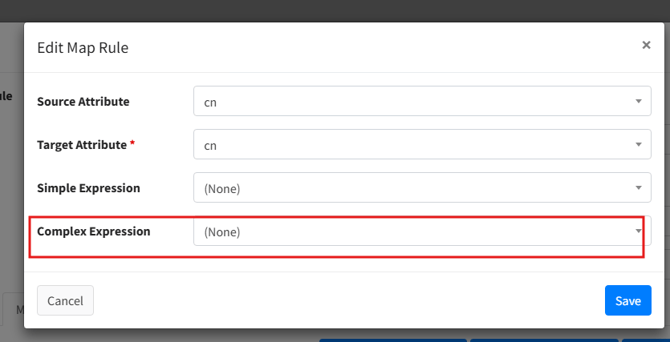
givenName + "." + snormailNickname.ToLower()). - Under Sync Map Rules, map this Complex Expression to the target
cnattribute. AD will then calculate the proper Distinguished Name based on this dynamic output.
Option 3 — Update the right-hand portion of the DN (the target OU path)
If you need to change the container where the object lives:
- Modify the target path under the Sync Profile settings (e.g., specifying a target Organizational Unit).
- When PowerSyncPro provisions or moves the object into that OU, Active Directory will automatically adjust the right-hand portion of the object's
distinguishedName.