
This article explains why the "Agent Register initial request failed: Machine not in PSP" and "Failed to complete initial register call: Machine not found" errors occur in the workstation Event Viewer or the Failed Communications view in PowerSyncPro, and how to resolve them. These errors mean the device has not yet been imported into the PowerSyncPro server SQL database, so the Migration Agent cannot complete registration. Follow the steps below to import the device and allow the agent to register.
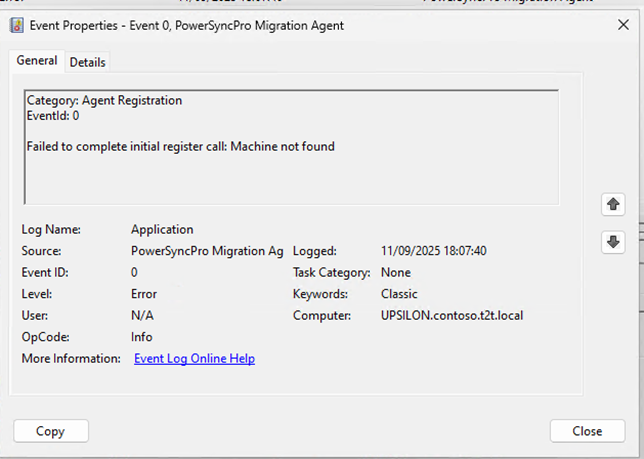
Agent Register initial request failed: Machine not in PSP
Failed to complete initial register call: Machine not found
Why does this error occur?
The workstation successfully communicated and negotiated with the PowerSyncPro server using the PreSharedKey and EndPoint URL, but the Migration Agent did not complete registration. PowerSyncPro requires that all machines exist in its SQL database before they are permitted to register — this is an additional security measure. The device must be present in Active Directory or Microsoft Entra and must have been imported into the PowerSyncPro server database before the Migration Agent can complete registration.
How do you resolve this error?
To resolve this error, import the device into the PowerSyncPro database and then trigger agent registration. Follow these steps in order:
- Confirm that a directory is configured in PowerSyncPro for the source environment where the workstation resides. Navigate to the PowerSyncPro server, open the Directories section, and verify that a directory entry exists for the Active Directory or Entra environment the workstation belongs to.
- Open that directory profile and verify that the option to import devices is enabled.
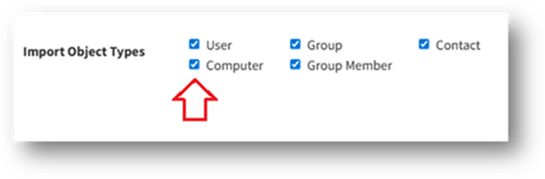
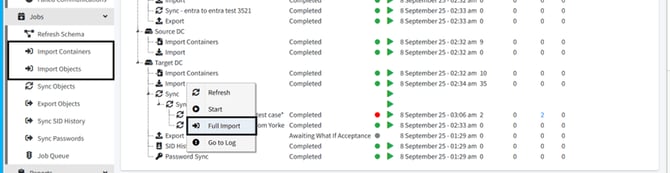
- If the device was recently created, the directory import may not have run since it was added, run a schedule job to trigger the import.
- If you don't have a sync profile setup from the source to a target directory, trigger a manual import via the "Jobs" section in the Sync Service and ensure the sync schedule interval is short enough to capture new devices promptly.
- Once the device is present in the PowerSyncPro database, the Migration Agent will complete registration automatically. Use the Single Object Report to locate the computer object within the directory and confirm it has been imported.
- Navigate to the Agents section on the PowerSyncPro server to verify the agent has registered successfully.
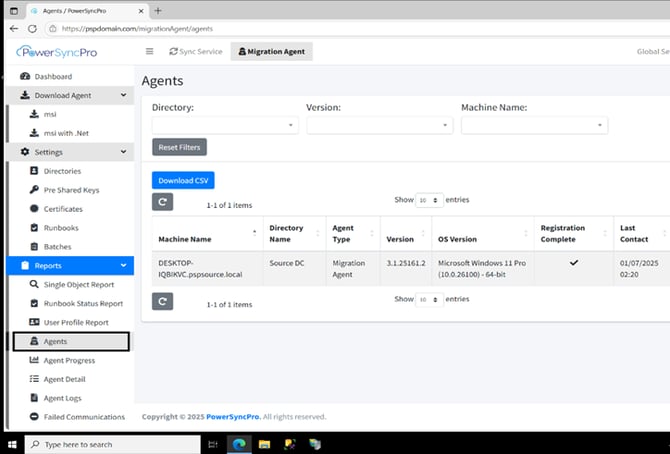
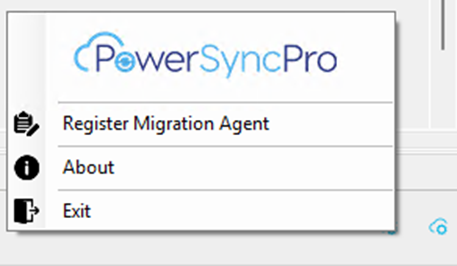
- If the agent is not listed, open the tray application on the workstation, right-click the tray icon, and select Register Migration Agent to force a registration attempt.
If registration does not complete immediately, the Migration Agent retries automatically using a Fibonacci back-off schedule (in minutes): 1, 1, 2, 3, 5, 8, 13, 21, 34, and so on — or until the Migration Agent service is restarted. To skip the wait, restart the Migration Agent service on the workstation to force an immediate retry.
If the device is missing when you try to add it to a batch, DirSync has not yet ingested the device. Once the device has been imported into the PowerSyncPro server database, you will be able to add it to a batch.