Why does clicking Generate for the Bulk Enrollment Token do nothing or return a blank screen?
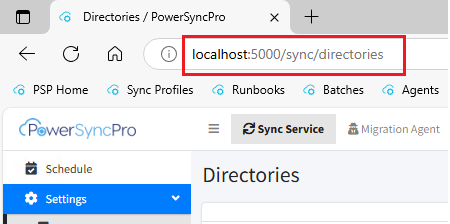
Clicking Generate does nothing or returns a blank browser screen after Microsoft sign-in because the URL you opened PowerSyncPro from does not match the Redirect URI configured in your Entra ID App Registration. To resolve this, access the PowerSyncPro server console using http://localhost:5000 and ensure that URI is registered as a Single-page application Redirect URI in your App Registration.
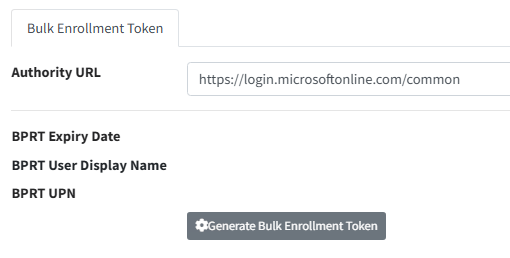
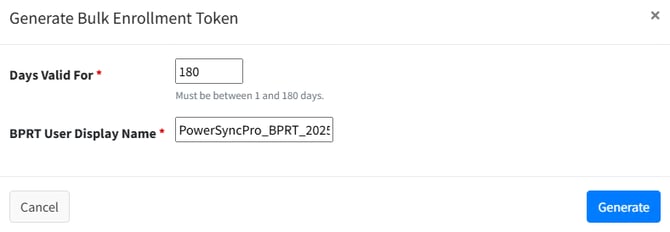
When generating the Bulk Enrollment Token in your tenant to support Entra join of your devices:
What symptoms indicate a Redirect URI mismatch?
A Redirect URI mismatch produces one of two symptoms. When you click Generate, one of the following may occur:
- Nothing happens.
- You are taken to the Microsoft authentication page.
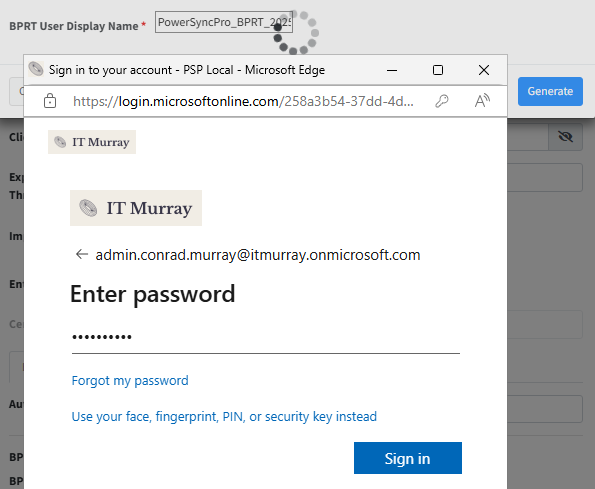
but after Sign in, you are returned with a blank browser screen:
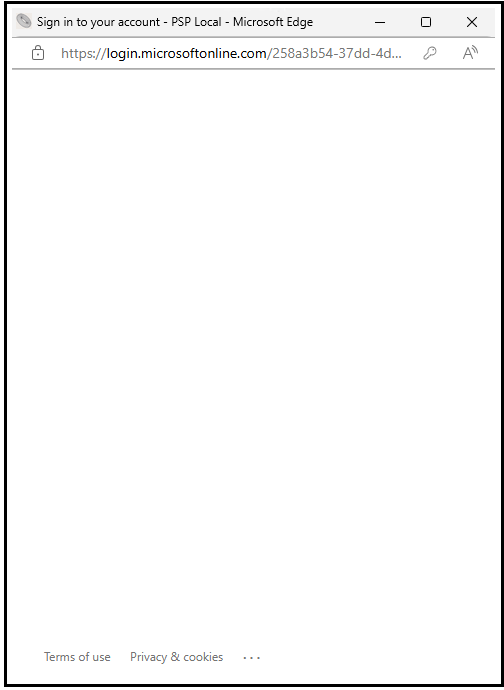
This will happen if the URL you have started your configuration from in PowerSyncPro does not match
What causes this behaviour?
The Redirect URI in your App Registration.
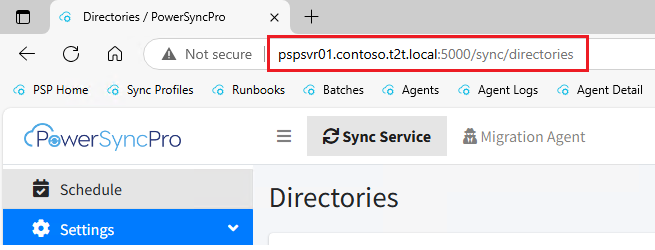
How do you fix the Redirect URI mismatch?
Verify that the URL you use to access PowerSyncPro is registered as a Redirect URI in your Entra ID App Registration. To check or update the Redirect URI, navigate to:
App Registration > Authentication > Platform configuration > Single-page application > Redirect URIs
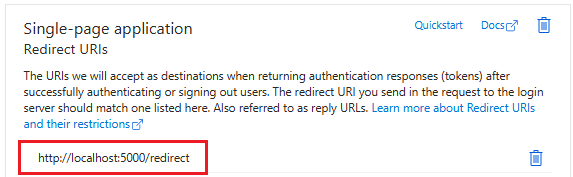
Connect to the PowerSyncPro server console using http://localhost:5000 to perform your initial configurations, and ensure this URL is registered as a Redirect URI in your App Registration. If your installation uses a different port, refer to your installation documentation for the correct default URL.
- Sign in to the Azure portal and navigate to Azure Active Directory > App registrations.
- Select the App Registration used for your PowerSyncPro integration.
- Go to Authentication in the left-hand menu.
- Under Platform configurations, locate the Single-page application section.
- Click Add URI and enter the exact URL you use to access the PowerSyncPro server console (for example,
http://localhost:5000). - Click Save.
- Return to PowerSyncPro and attempt to generate the Bulk Enrollment Token again.