
The scenario
Once a workstation migration is complete, you will typically want to offboard the PowerSyncPro Migration Agent (PSPMA) from the device. While you can trigger uninstallation directly via a PowerSyncPro runbook, many enterprise environments prefer to utilize their existing software deployment tool—Microsoft Intune—to handle the cleanup.
To facilitate this, PowerSyncPro publishes a pre-built Intune Win32 app package (Uninstall-PSPMA.intunewin) designed specifically to cleanly strip the agent, remove leftover vendor registry keys, and clean up local data.
⚠️ Important: Post-Uninstallation Batch Cleanup - If the Migration Agent is removed using this Intune method, you must manually remove the machine from any PowerSyncPro migration batches it is currently assigned to.
If the Migration Agent is reinstalled on the system at a later date (for troubleshooting, testing, or redeployment) and the machine still remains in an active migration batch, the PowerSyncPro server will recognize the agent and automatically run the migration workflow again on the system.
Download scripts
The scripts (for reference) and the compiled IntuneWin file are available at our Github here:
https://github.com/PowerSyncPro/MigrationAgent/tree/main/PSPMA-Intune-Uninstall
The inverted app pattern: How it works
Intune's application management model is heavily biased toward installing software. To force Intune to uninstall an application on demand without first deploying it as "Required," this package utilizes a clever Inverted App Package pattern:
- The No-Op Install: The Win32 app's install command is set to a "no-op" (does nothing) because the package itself installs nothing.
- The Custom Detection Script: We upload a custom detection script (
Detect-PSPMA.ps1) that checks if the PowerSyncPro Migration Agent is currently installed on the device. If it finds the agent, it tells Intune, "Yes, this app is installed." - The Uninstall Assignment: We assign the app under Uninstall to our target device group. Because the detection script reports the agent as present, Intune immediately triggers the app's uninstall command, running the clean removal script (
Uninstall-PSPMA.ps1).
This elegant method allows you to push an uninstallation to any machine that already has the agent installed, without needing to repackage or redeploy the original agent installer.
What the package does
The pre-built Uninstall-PSPMA.intunewin package contains three core files:
| File | Purpose |
|---|---|
| Uninstall-PSPMA.ps1 | The removal script. Runs as SYSTEM and performs a sequential, complete teardown of the agent. |
| Detect-PSPMA.ps1 | The custom detection script. Reports the agent's presence to Intune so the uninstall command can be triggered. |
| README-Intune.txt | Quick-reference command and packaging reference. |
When the uninstall command is invoked, the Uninstall-PSPMA.ps1 script executes the following steps in a strict, audited sequence:
- Stops the Service: If the
PowerSyncPro Migration Agentservice is active, the script stops it and waits up to 30 seconds for the service to fully terminate. - Runs the MSI Uninstaller: The script scans the local registry for matching uninstall entries under
HKLM:\SOFTWARE\Microsoft\Windows\CurrentVersion\Uninstall. It then invokesmsiexec /x {GUID} /qn /norestartusing the matching Product Code GUID. If no GUID is found, it falls back to the registeredQuietUninstallStringorUninstallString(appending/norestart /passiveas needed). - Clears Leftover Vendor Data: Deletes the registry key
HKLM:\SOFTWARE\Declaration Softwareand the folderC:\ProgramData\Declaration Softwareto ensure no cached agent database files or configurations remain. - Removes Provisioning Packages: Deletes any lingering provisioning packages (
PowerSyncPro*.ppkg) fromC:\ProgramData\Microsoft\Provisioning. - Verifies and Logs: It re-checks for the service and registry keys. If either is still resolvable, the script fails (exits with code
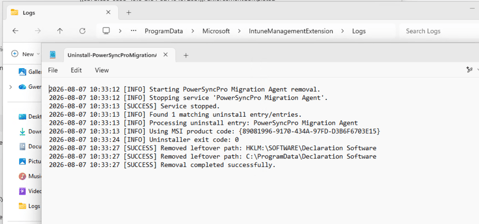
1) rather than reporting a false success to Intune. Every step is written to a timestamped, level-tagged log file atC:\ProgramData\Microsoft\IntuneManagementExtension\Logs\Uninstall-PowerSyncProMigrationAgent.log.
Step-by-step configuration guide
Step 1: Download the files
Download the required files from the PowerSyncPro GitHub repository:
Uninstall-PSPMA.intunewin(The Win32 app package)Detect-PSPMA.ps1(The standalone detection script)
⚠️ Important: Do Not Extract the .intunewin File - The .intunewin file is already pre-packaged and ready for direct upload to Microsoft Intune. You do not need to run the Microsoft Win32 Content Prep Tool (IntuneWinAppUtil.exe) yourself.
Step 2: Create the Win32 app in Intune
- Log in to the Microsoft Intune Admin Center.
- Navigate to Apps > All apps > Add.
- Under App type, select Windows app (Win32) and click Select.
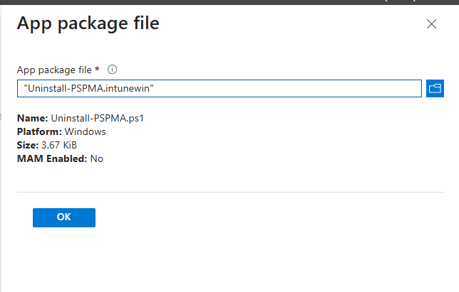
- In the App package file pane, click the folder icon and upload your downloaded
Uninstall-PSPMA.intunewinfile.
- Configure the App information using the following recommended metadata:
| Setting | Recommended Value |
|---|---|
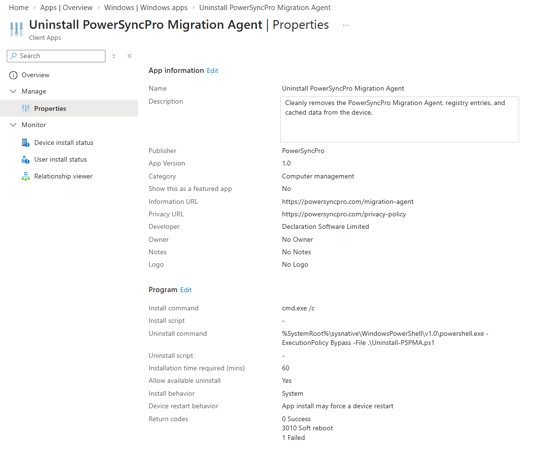
| Name | Uninstall PowerSyncPro Migration Agent |
| Description | Cleanly removes the PowerSyncPro Migration Agent, registry entries, and cached data from the device. |
| Publisher | PowerSyncPro |
| App Version | 1.0 |
| Category | Computer management |
| Show this as a featured app... | No |
| Information URL | https://powersyncpro.com/migration-agent |
| Privacy URL | https://powersyncpro.com/privacy-policy |
| Developer | Declaration Software Limited |
Step 3: Configure program and return codes
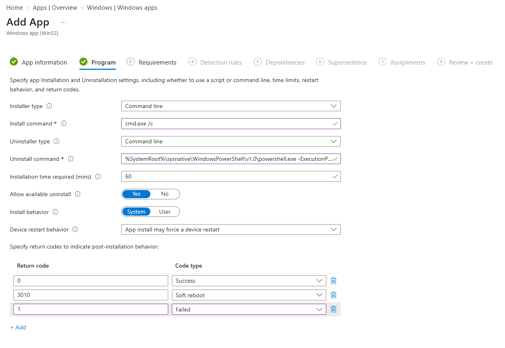
In the Program tab, configure how the app installs and uninstalls. Because this is an inverted package, pay close attention to the commands:
- Install command:
cmd.exe /c(This is a deliberate "no-op" command that exits instantly with success, as this package is only designed to uninstall software). - Uninstall command:
%SystemRoot%\sysnative\WindowsPowerShell\v1.0\powershell.exe -ExecutionPolicy Bypass -File .\Uninstall-PSPMA.ps1
💡 Tip: Why we use the "sysnative" Path - The Intune Management Extension agent operates natively as a 32-bit process. If you call standard powershell.exe, Windows will redirect it to the 32-bit PowerShell engine, which will see a redirected, 32-bit view of the registry and file system. Using %SystemRoot%\sysnative forces Windows to invoke the 64-bit PowerShell host, ensuring the script can see the true 64-bit registry keys where the agent is registered.
Configure the remaining Program settings and Return Codes exactly as shown below:
| Setting | Value |
|---|---|
| Installation time required (mins) | 60 |
| Allow available uninstall | Yes |
| Install behavior | System |
| Device restart behavior | App install may force a device restart |
Return Codes Table:
| Code | Type |
|---|---|
| 0 | Success |
| 3010 | Soft reboot (Triggered if the uninstaller reports that a reboot is required to clear locked files) |
| 1 | Failed |
Step 4: Configure requirements
Configure the basic operating system requirements for the app:
- Operating system architecture: Not checked (The custom removal script handles 32-bit and 64-bit registry views automatically).
- Minimum operating system: Windows 10 1607
Step 5: Configure custom detection rules
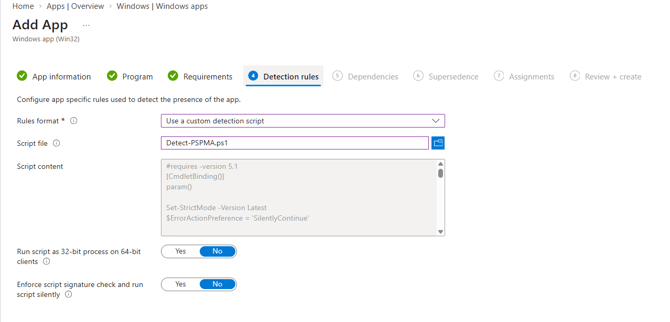
In the Detection rules tab, set the Rules format to Use a custom detection script and upload your downloaded Detect-PSPMA.ps1 script.
| Setting | Value |
|---|---|
| Run script as 32-bit process... | No (Ensures the script runs in the 64-bit context to inspect the primary registry) |
| Enforce script signature check... | No |
Step 6: Deploy and assign the app
To cleanly trigger the uninstallation across your fleet:
- Navigate to the Assignments tab.
- Under the Uninstall section (do not use Required or Available), click Add group and select the device collection containing the workstations you want the agent removed from.
- Configure the assignment settings:
- End user notifications: Show all toast notifications (or "Hide all" if you prefer a fully silent technician-only offboarding).
- Availability / Deadline: As soon as possible.
- Click Review + save and create the app.
Verification and troubleshooting
Checking deployment success
Because of the inverted app pattern, you must interpret Intune's deployment status slightly differently than a standard app:
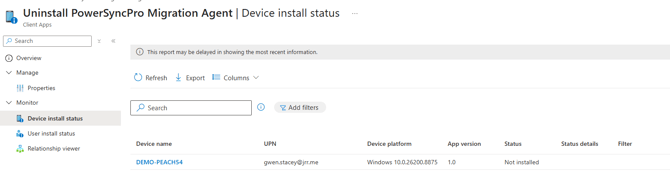
- Intune Console: Review the Device install status for the app. Workstations that have successfully completed the uninstallation will report a status of Not installed. This is the expected success state, because the detection script no longer finds the agent on the device.
- On the Endpoint: You can verify the raw script execution by reading the local log file located at:
C:\ProgramData\Microsoft\IntuneManagementExtension\Logs\Uninstall-PowerSyncProMigrationAgent.log
Troubleshooting common issues
- Issue: Nothing happens on the device.
- Solution: Confirm that the target device group is assigned to the Uninstall section of the deployments rather than Required or Available. If it is assigned as Required, Intune will run the no-op install command, do nothing, and mark it as successful without ever calling the uninstaller.
- Issue: Intune reports a "Failed" status, but the agent seems to be gone.
- Solution: This usually happens if the detection script is running in 32-bit mode. Check your Detection rules setting and ensure that Run script as 32-bit process on 64-bit clients is strictly set to No. If set to Yes, the 32-bit detection context won't see the 64-bit registry keys, leading to a false detection failure.
- Issue: Log reports "No uninstall command was found for..."
- Solution: This indicates that a non-standard or corrupt installation exists on the machine where the registry uninstall entry is missing its
UninstallStringorQuietUninstallString, and the key name is not a standard MSI product GUID. These specific endpoints will need to be inspected and cleaned up manually by a technician.
- Solution: This indicates that a non-standard or corrupt installation exists on the machine where the registry uninstall entry is missing its