
If you plan on using PowerSyncPro to interact with a Microsoft Azure GCC High Tenant (typically reserved for the US Government and its contractors), you must make a few configuration changes to the server before adding the tenant to the application.
GCC High is fully supported as a source and target location for both PowerSyncPro DirSync and the Migration Agent in Version 3.3 or above.
Prerequisites
- PowerSyncPro Server Installation Version 3.3 or above.
- PowerSyncPro Migration Agent Version 3.3 or above installed on endpoints.
- A Microsoft Azure GCC High Tenant.
- An Application Registration configured in the GCC High Tenant.
- Note: Because the Entra Registration PowerShell Script does not yet support GCC High, this registration must be created manually. Please review the manual creation steps in the PowerSyncPro Migration Server Prerequisites Guide.
Enabling GCC High Support
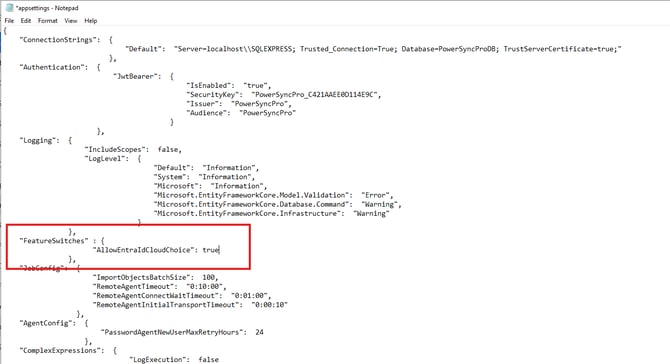
GCC High support is currently gated behind a feature flag in PowerSyncPro. It must be manually enabled via the appsettings.json file on the central PowerSyncPro server.
- Connect to the PowerSyncPro server console (via RDP, etc.).
- Open Notepad as an Administrator.
- Open the following file:
C:\Program Files\PowerSyncPro\appsettings.json - Between the
"Logging"and"JobConfig"sections, add a new"FeatureSwitches"section containing the"AllowEntraIdCloudChoice"flag, as shown below:
"FeatureSwitches" : {
        "AllowEntraIdCloudChoice": true
    },
- Save the
appsettings.jsonfile. - Restart the PowerSyncPro Service via the Windows Services console.
- Log in to the PowerSyncPro web interface to ensure the service started successfully.
IMPORTANT: PowerSyncPro Upgrades & appsettings.json
When upgrading PowerSyncPro via an MSI file in the future, the appsettings.json file is not backed up by default. Be sure to manually back up your modified appsettings.json file before upgrading, and reload your custom feature flags after the installation completes.
Adding a GCC High Directory
Once the feature flag is active, you can add your GCC High tenant to PowerSyncPro.
- Log in to PowerSyncPro.
- Navigate to Sync Service → Directories and click Create.
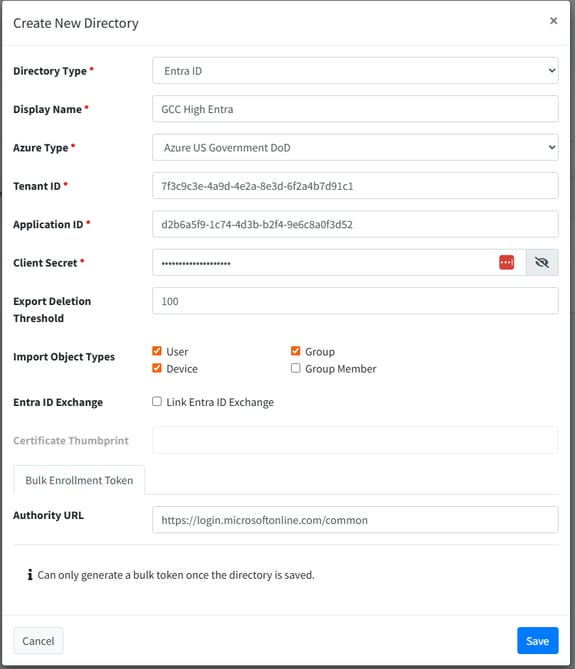
- Choose Entra ID as the Directory Type.
- Configure the following settings:
- Display Name: Choose a name relevant to your installation (e.g., GCC High Target).
- Azure Type: Select Azure US Government DoD.
- Tenant ID: Enter the Directory (tenant) ID from your manual App Registration.
- Application ID: Enter the Application (client) ID from your manual App Registration.
- Client Secret: Enter the Client Secret Value from your manual App Registration.
- Import Object Types: Select Users and Devices at a minimum. (Only select additional data like Groups or Contacts if required for your specific synchronization scope).
- Click Save.
Upon saving, PowerSyncPro will validate the configuration, attempt to connect to the GCC High Entra environment, and pull basic information including the directory schema.
Note: Azure Type Choice
In our testing we have found that “Azure US Government DoD” works for most DODCON GCC High tenants. If you cannot complete an Object Import from your tenant, please try the Azure US Government option. If neither option works, please contact support.
 Create Directory
Getting a Bulk Enrollment Token for Migration Agent
If you are planning to use your GCC High tenant as a target for workstation migrations, you must obtain a Bulk Enrollment Token (BPRT). This token allows the local Migration Agents to programmatically join endpoints to the Entra GCC High environment.
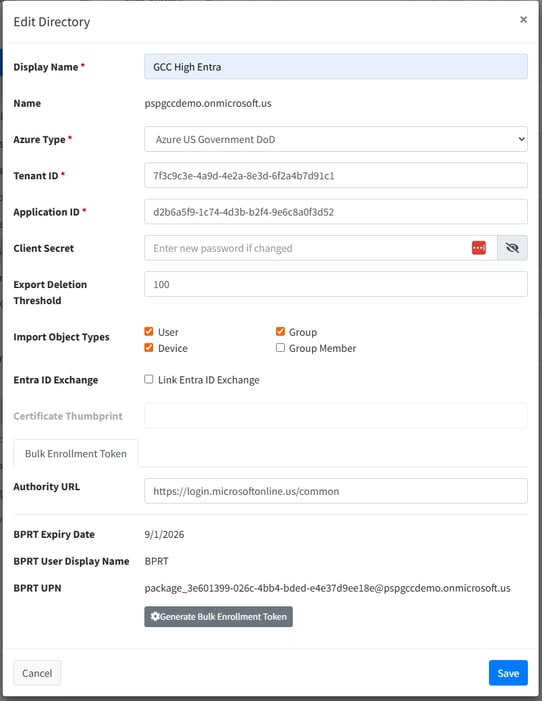
- Edit your newly created GCC High directory entry.
- Click the Generate Bulk Enrollment Token button.
- Provide a descriptive name for the token and click Generate.
- A Microsoft Authentication browser pop-up will appear. Log in to your GCC High tenant using an account with sufficient privileges (e.g., Intune Admin, Global Admin).
- Once authenticated, verify that the Bulk Enrollment Token section is now populated and save the directory profile.
 GCC High Directory Entry - Verify Authority URL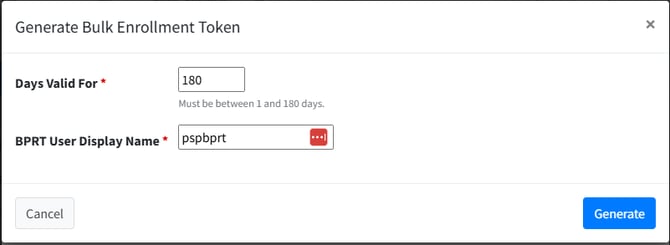
Complete!
PowerSyncPro is now connected to your GCC High tenant, and you have a valid bulk enrollment token staged to join endpoints to Entra. From this point forward, you can configure your Sync Profiles, Runbooks, and Batches exactly as you would with a traditional commercial Microsoft 365 tenant.