
If you are deploying your PowerSyncPro instance within Azure, you can have the prerequisites already installed via a Azure Marketplace server image.
The Marketplace server has the following components ready to go:
- PowerSyncPro 3.3.26088.1
- Windows Server 2022
- SQL 2022 Standard (default installation)
- SQL Management Studio 20
- IIS with URL rewrite and ARR.
- PowerSyncPro configuration and management scripts.
The documentation, prerequisites, installation guide and configuration guides are your single source of truth to ensure the server meets your project requirements. For example, you will need to review the performance scaling of your server to meet the size of your project.
If you are installing PowerSyncPro outside of Microsoft Azure, please review our Automated Installation Script to ease the installation process: PowerSyncPro Automated Installation Script
There is also a demonstration video on YouTube:
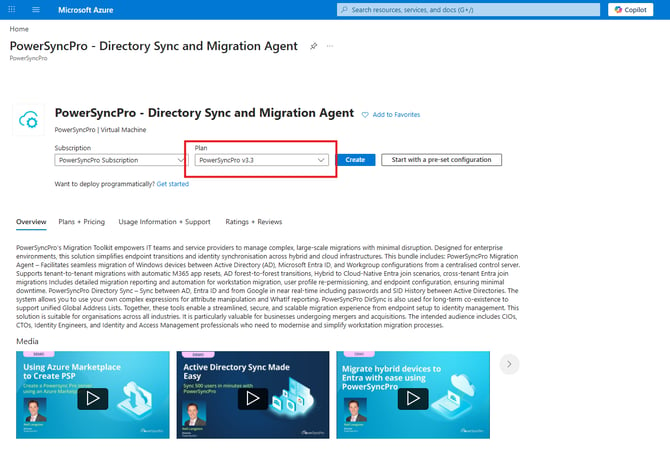
Finding the image in marketplace
Find the image in the Microsoft Marketplace or Azure Marketplace for PowerSyncPro, it can be used for all implementations, Migrations Agent and Directory Synchronization. Verify that you are installing version 3.3.
Use this link to Azure Marketplace. (or Search “PowerSyncPro” in Azure Marketplace.)
Ports and networking
The default ports have been configured within the PowerSyncPro installation process, the Azure Network Security group is configured with the following ports open by default:
| Firewall Ports open by Default on Azure Network Security Group | |
| 80 (HTTP) | HTTP for redirect to HTTPS and obtaining LetsEncrypt Certificate |
| 443 (HTTPS) | HTTPS for Migration Agent Access via Built-In IIS Reverse Proxy |
| 3389 (RDP) | For initial access to the server via RDP. |
You will need to update your NSG to account for your circumstances.
Review the documentation for information on what endpoints you require for your project and provide more details on the different circumstances. You do not need to follow these actions as the setup script completes them, however this article will provide more context around configuration and security.
Security Recommendations:
- Port 80 (HTTP) - If you are not using LetsEncrypt to obtain certificates, you can close port 80. It is only required to obtain and renew LetsEncrypt certificates.
- Port 3389 (RDP) - This port should be restricted to specific IP addresses if you do not plan to use an alternative method for remote access to the server. Leaving 3389 exposed to the Internet with or without strong credentials is a security risk.
- Port 443 (HTTPS) - If you are not migrating workstations (DirSync only) this can be closed. HTTPS traffic for Migration Agent communication can be run through a reverse proxy or web application firewall if required.
The following ports have been configured within the Windows Firewall on the default image. These may need to be tightened if you are deploying PowerSyncPro onto an existing vNet.
| Firewall Ports open by Default on Windows Firewall | |
| 80 (HTTP) | HTTP for redirect to HTTPS and obtaining LetsEncrypt Certificate |
| 443 (HTTPS) | HTTPS for Migration Agent Access via Built-In IIS Reverse Proxy |
| 3389 (RDP) | For initial access to the server via RDP. |
| 5000 (Kestrel HTTP) | PowerSyncPro Kestrel HTTP Backend for Application Access |
| 5001 (Kestrel HTTPS) | PowerSyncPro Kestrel HTTPS Backend for Remote Sync Agent Access |
Certificates
To complete the configuration of the server, you will need a certificate for the public SSL endpoint of PowerSyncPro. This can be via LetsEncrypt, a PFX file from a trusted certificate authority, or via a Self-Signed certificate.
The installation completion script will run at first login to the image and assist you with setting up the certificate of your choice.
Certificate requirements
For LetsEncrypt
- Public IP for the VM with ports 80 and 443 open
- DNS A-record pointing to the server's public IP
- This can be via a domain you control (e.g. psp.company.com)
- Azure DNS (e.g. company-psp.eastus.cloudapp.azure.com)
- Valid email address for certificate renewal notifications
For bring your own certificate (PFX)
- PFX file containing your SSL certificate and private key copied to the Azure VM.
- Password for the PFX file
- DNS A-record pointing to your server’s public IP matching the certificate (e.g., psp.company.com)
- Port 443 must be open to the Internet so migration agents can reach the server.
For self-signed (not recommended)
- Hostname for the certificate (e.g., psp-internal.company.com)
Self-signed certificates are not recommended. Some PowerSyncPro features depend on trust relationships between clients and the server. If using a self-signed certificate, you may need to deploy it to endpoints running PSP agents in the root certification authority so the endpoints will trust it.
Completing setup after image deployment
At first login via RDP, you will see the configuration script run. This script will assist with completing the setup of PowerSyncPro. If, at any point, the script fails you can find a Shortcut to it on the desktop to restart it. This icon will be removed once setup is successfully completed.
Initial login
|
|
|
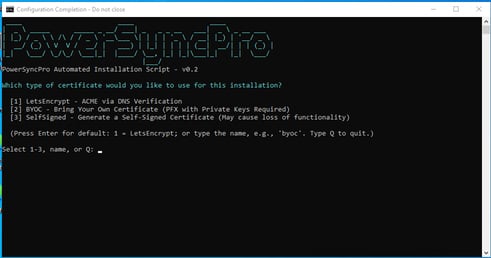 Menu to select which type of certificate you would like to use. Menu to select which type of certificate you would like to use. |
|
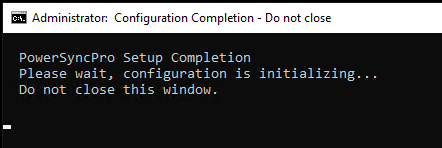 Completion Script is starting, do not close the Powershell Window
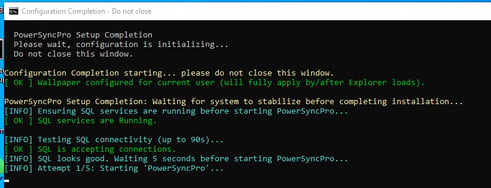 Script is checking the deployment and starting PowerSyncPro.
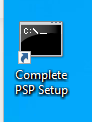 Icon on desktop to restart setup script.
If using a LetsEncrypt certificate
- Select “1” to use a LetsEncrypt Certificate
- Enter the DNS record pointing to the server (e.g. psp.company.com)
- Enter an e-mail address for LetsEncrypt Renewal notifications.
What the setup script does
- Sets up the server for the provided domain name (IIS, PowerSyncPro, etc.)
- Hardens legacy SSL ciphers
- Confirms Windows Firewall configuration
- Requests LetsEncrypt Certificate via Posh-ACME
- Installs the certificate
- Drops a scheduled task to renew the LetsEncrypt certificate every 90 days
- Writes a Readme to the Desktop (PSP ReadMe.txt) including login instructions, etc.
- Cleans up the image
- Requests a reboot to finish setup
After reboot the installation will be ready to setup. Check the Readme on the desktop for default login credentials, etc.
Certificate renewals will be handled automatically via a scheduled task. The task will run every week and if the LetsEncrypt certificate needs to be renewed, it will be renewed and installed.
If bringing your own certificate (PFX file)
- Copy the PFX file to the image via RDP or another method, put it in an easy to find location (e.g. C:\Temp\certificate.pfx)
- Select “2” to Bring Your Own Certificate
- Enter the location of your PFX file on the system (e.g. C:\Temp\certificate.pfx)
- Enter the password for the PFX file
- Confirm the hostname for the server (this will be pulled from the certificate)
What the setup script does
- Sets up the server for the provided domain name (IIS, PowerSyncPro, etc.)
- Hardens legacy SSL ciphers
- Confirms Windows Firewall configuration
- Copies the provided certificate to the local certificate store
- Installs the certificate
- Writes a Readme to the Desktop (PSP ReadMe.txt) including login instructions, etc.
- Cleans up the image
- Requests a reboot to finish setup
After reboot the installation will be ready to setup. Check the Readme on the desktop for default login credentials, etc.
Certificate renewals can be handled using the Cert-Renewer.ps1 in C:\Scripts. This script will update bindings on IIS and on the AppSettings.JSON file in C:\Program Files\PowerSyncPro to update the Kestrel backend.
Admin remote access via IIS reverse proxy
By default, the IIS Reverse Proxy running on Port 443 restricts access to the administrative portal to only localhost. Only access to /Agent is allowed for connections from Migration Agents running on end user endpoints in the field.
For example, if your server is psp.company.com:
- https://psp.company.com/ - 403 for anywhere but on the server.
- https://psp.company.com/Agent - Allowed from anywhere.
This protects the PowerSyncPro administrative portal from unauthorized access.
If you want to allow access to the PowerSyncPro administrative portal from specific IP addresses, you can use the WebConfig_Editor.ps1 script in C:\Scripts.
To allow additional hosts or subnets, use PowerShell:
- Add: C:\Scripts\WebConfig_Editor.ps1 -AddAllowedAddress 10.0.0.0/8
- Remove: C:\Scripts\WebConfig_Editor.ps1 -RemoveAllowedAddress 10.0.0.0/8
- View: C:\Scripts\WebConfig_Editor.ps1
Other important guidance
Other guidance for the configuration of your server, you will need to consider the following:
- Decide on your access methodology for remote controlling (RDP) your server, for example identifying your Network Security Group, or any other access methodology. If using RDP, it is recommended to restrict it to trusted IP ranges using the Network Security Group.
- Decide on your PowerSyncPro directory configuration connecting to your Active Directory, for example, direct line of sight to a DC or using remote sync/proxy agents. (Synchronizing across disconnected networks and high-security environments)
- If you need to join the server to a domain and use a service account (or GMSA) rather than the system account, then you will need to do this before configuring anything in PowerSyncPro, any configuration will be encrypted with the local system account and therefore be encrypted with it's DPAPI. Update the “run-as” on the PowerSyncPro service with the appropriate account before configuring PowerSyncPro. You will also need to consider how the service account will access SQL and update SQL permissions to the PowerSyncProDb accordingly.
- Harden the server to your security posture and requirements.
- The internet presentable external DNS entry for your chosen endpoint needs to be allocated the public IP of the server.
- For migration agent endpoint, configure your endpoint access methodology, for example assign a public IP to the server and open up port 443 on the NSG.
- For remote agents, open up port 5001 on the NSG for your trusted IP address, any hardware firewall, and the OS firewall too, to the remote agent servers.
- When choosing your disk for your Azure server, ensure you choose a logical sector size of 4096 (4 KB), as SQL cannot be installed on servers where the sector size is 8192 (8 KB) see this Microsoft article for more information on their limitation Troubleshoot Operating System Disk Sector Size Greater Than 4 KB - SQL Server | Microsoft Learn