
You see the following error(s) on the workstation event viewer or in the failed communications view in the PowerSyncPro server, and you cannot add the workstation to the batch.
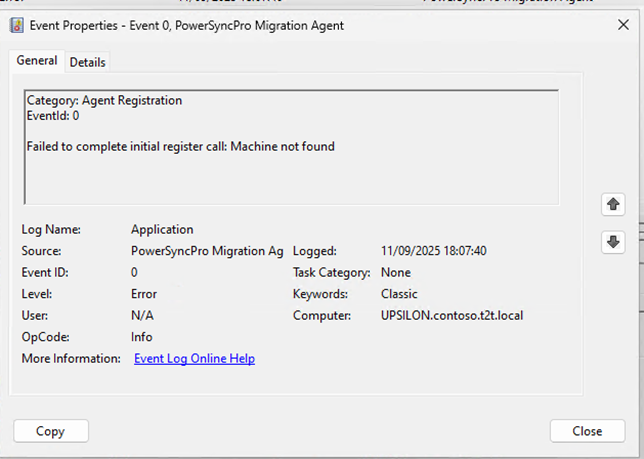
Agent Register initial request failed: Machine not in PSP
Failed to complete initial register call: Machine not found
The good news is the workstation has successfully communicated and been able negotiate with the PowerSyncPro server using the PreSharedKey and EndPoint URL, however Migration Agent did not complete the registration fully.
PowerSyncPro only allows known machines to register with the server as an additional security step, so the workstation must be in the AD or Entra. This error is reporting that the device has not been imported into PowerSyncPro server SQL database.
To resolve
- Check that you have a directory setup for the source environment where the workstation resides.
- Ensure that devices are selected to import on that directory profile.
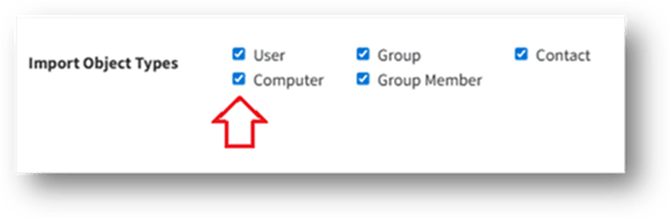
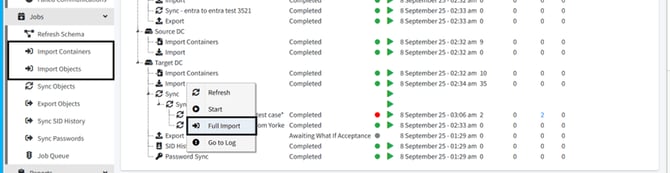
- If it is a new device, the import of the directory may not have been run since the device was created, run the import and ensure the sync schedule is frequent enough for your needs.
- Once the device is present in the PowerSyncPro database then the Agent should register, and you can review the single object report to locate the computer object within the directory.
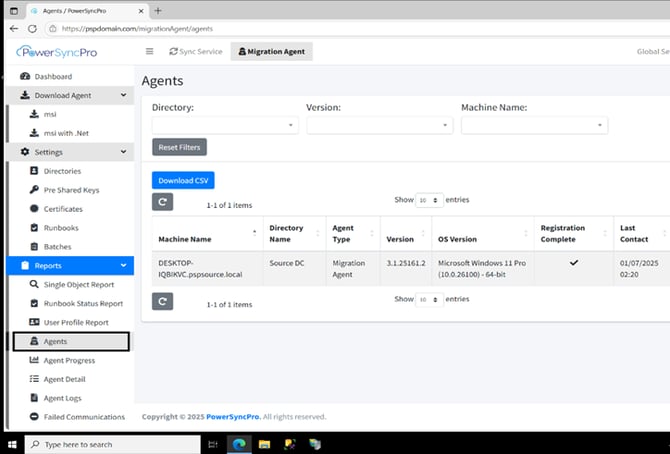
- To check that the agent has registered successfully you can navigate to the agents section on the PowerSyncPro server.
- If the agent still isn’t appearing navigate to the tray application on the workstation, right click and select “Register Migration Agent”, this will attempt to register the agent.
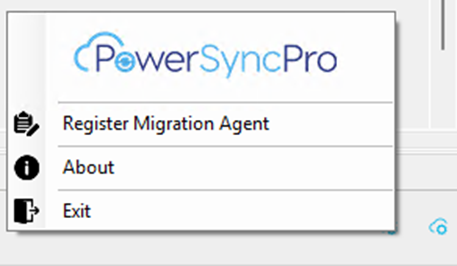
The agent uses the fibonacci sequence to re-try to register in minutes, 1, 1, 2, 3, 5, 8, 13, 21, 34 etc or until the service is restarted.
If you try and add the device to a batch, and it is missing, then DirSync has not ingested the device yet. Once the device has been imported into PowerSyncPro server, you will also be able to add it into a batch.