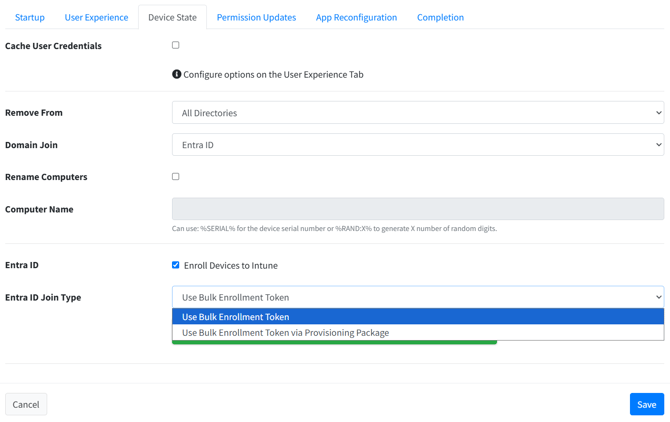
When the Migration Agent joins a device to the target Entra ID, it can use one of two join methods. Both use the Bulk Enrollment Token (BPRT) generated from your directory configuration. They differ in three ways: how reliably the join completes, when the device enrolls into Intune, and whether the device identity is protected by the device's Trusted Platform Module (TPM).
This article explains the trade-offs so you can choose the right method for your migration.
Join methods at a glance
| Use Bulk Enrollment Token | Use Bulk Enrollment Token via Provisioning Package | |
|---|---|---|
| Join reliability | Very high | Less predictable; failed joins are not uncommon, especially on older Windows versions |
| TPM-protected device identity | No (TpmProtected: NO) |
Yes (TpmProtected: YES) |
| Intune enrollment | At first user logon | Immediately, when the package is applied |
| Intune primary user (owner) | The migrated user | The package (bulk enrollment) account |
What does TpmProtected mean?
A TPM is a security chip in the computer that creates, stores and protects cryptographic keys. When a device's Entra identity is TPM-protected, its device key is held in hardware and cannot be exported from the machine.
You can check this on any device by running dsregcmd /status and looking at the TpmProtected value. A device joined with the default BPRT method reports TpmProtected: NO. This is expected behaviour for that join method and does not mean the migration failed.
Use Bulk Enrollment Token (default)
This is a proprietary join method that PowerSyncPro developed to make Entra joins into the target tenant reliable. The Migration Agent uses the BPRT to join the device to Entra ID directly, without applying a provisioning package.
Advantages
- Highly reliable. PowerSyncPro built this method specifically to avoid the failures that can occur with provisioning packages, and it is the default for that reason.
- The user is the device owner in Intune. Because enrollment happens when the user signs in, the migrated user is recorded as the device's primary user.
Considerations
- The device identity is not TPM-protected. The device reports
TpmProtected: NO. - Intune enrollment waits for the first user logon. The device is not managed by Intune until the user signs in. Until then, device policies, apps and compliance are not applied.
- The target tenant must be configured for user-driven enrollment. Enrollment runs under the signed-in user, and Intune treats it as a personally owned device when it starts, so the tenant must allow this. This includes:
- Allowing personally owned Windows devices to enroll. You can scope this to a group containing only the users being migrated, and the final enrollment is still recorded as corporate. If your organisation cannot allow personal enrollments, you can pre-register devices with corporate device identifiers instead.
- Excluding the Microsoft Intune Enrollment cloud app from Conditional Access MFA requirements.
- Including migrating users in the MDM user scope, with no overlap with the WIP user scope.
- Assigning users a licence that includes Intune.
Use Bulk Enrollment Token via Provisioning Package
PowerSyncPro builds a Windows provisioning package (.ppkg) on the fly. The package contains only the BPRT from your directory configuration, and the Migration Agent applies it to perform the join. You do not need Windows Configuration Designer (WCD/WICD).
Advantages
- TPM-protected device identity. The device reports
TpmProtected: YES. - Intune enrollment happens immediately. The device enrolls in Intune as soon as the package is applied, before any user signs in. Device policies and apps can begin applying straight away.
Considerations
- Reliability is less certain. Applying a provisioning package is subject to local conditions on each Windows machine. The Migration Agent will retry applying the package, but failed Entra joins are not uncommon with this method, especially on older versions of Windows.
- The package account is the device owner in Intune. The device enrolls under the bulk enrollment account, so that account (named
package_...) is shown as the device's primary user, not the migrated user. - Early enrollment can show the Enrollment Status Page. The device is already enrolled when the user first signs in, so tenants with an ESP policy may show it at first logon. This can happen even when the policy is set to show only for OOBE-provisioned devices.
Before using this method in production:
- Pilot on a representative sample of hardware models and Windows builds, paying particular attention to older Windows versions in your estate.
- Monitor join results closely during early migration waves.
- Use pre-migration scripts to resolve any environment-specific issues the pilot uncovers.
- Plan for hands-on support for devices that cannot be remediated remotely.
Which method should I choose?
- Choose Use Bulk Enrollment Token if join reliability is your priority, your tenant is configured for user-driven Intune enrollment, and you are happy for enrollment to complete at the user's first logon.
- Choose Use Bulk Enrollment Token via Provisioning Package if you need TPM-protected device identity or Intune management before the user signs in. You also need to be able to pilot the rollout, monitor it, and remediate failed joins.
Requirements
The provisioning package option requires current versions of both the PowerSyncPro server and the Migration Agent. If you do not see the Entra ID Join Type options in your runbook, upgrade the server and the agent on all Windows endpoints to the latest available version.
Runbook settings
The join method is set in the runbook under Entra ID Join Type.