
What is a Repermission (ReACL) only Runbook in PowerSyncPro?
During a phased migration, you often need both unmigrated source users and already-migrated target users to retain access to the same file servers at the same time. "Dual ACLing" a file server — adding target-side permissions alongside the existing source permissions without removing either — is the standard way to bridge that gap. This article walks through how to configure a Repermission (ReACL) only Runbook in PowerSyncPro to do exactly that.
How do you configure a Repermission (ReACL) only Runbook?
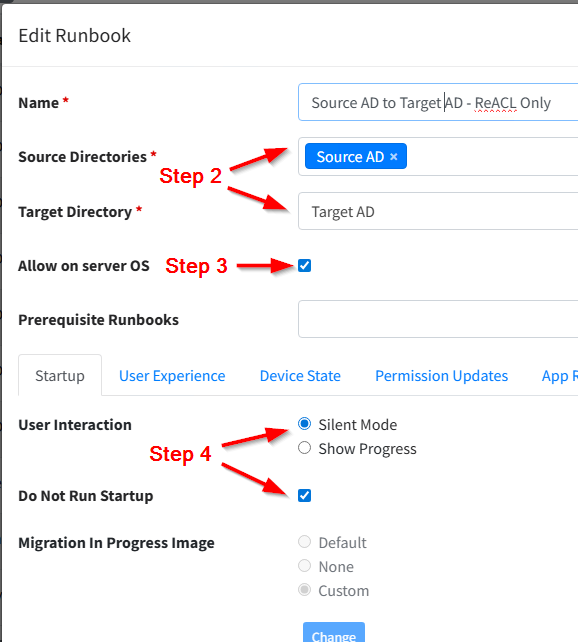
- Create a new Runbook.
- Select the Source and Target Directories.
- In most cases, a Repermission (ReACL) only Runbook will be run on file servers, so you will likely need to enable Allow on server OS.
- On the Startup tab, select the following settings:
- Silent Mode
- Do Not Run Startup
-
Skip the User Experience tab
-
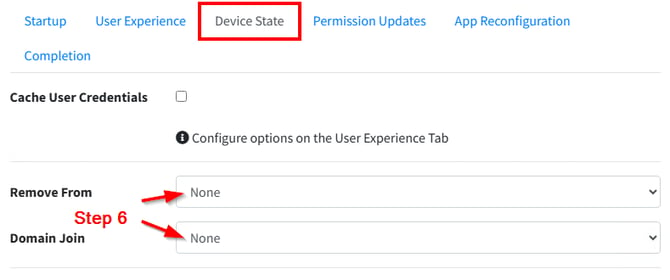
On the Device State tab, ensure the following default settings remain intact:
-
Remove From: None
-
Domain Join: None
-
-
On the Permission Updates tab, select “Only add permissions”.
-
Select the type of permissions you want to have “dual ACLed”. Only the following options are valid for the “Only add permissions” operation:
-
File System
-
File Shares
-
Printers
-
Remote File Shares
-
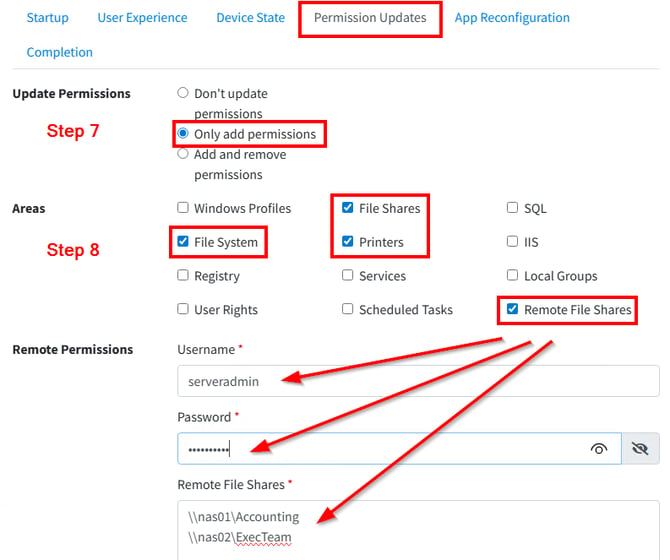
Note: Only the options listed above are valid for “Only add permissions” or “dual ACL” coexistence scenarios. Other options could cause device reboots or other unexpected results. As always, we would recommend testing your Runbook configuration on test devices extensively before implementing in production.
-
The App Reconfiguration tab should remain with the default settings, “Don't reconfigure applications”.
-
On the Completion tab, select “Do Not Run Completion”.
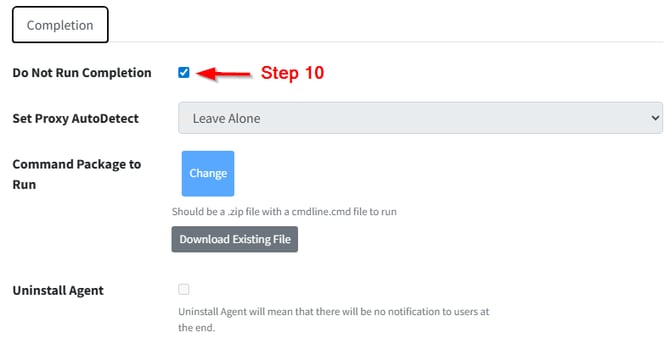
- Click Save.
How do you create a Batch for the ReACL only Runbook?
- Navigate to Batches and click Create a Batch.
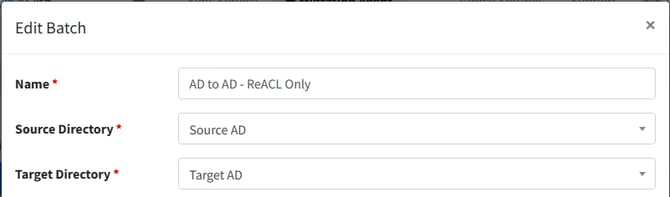
- Assign a name to the Batch, then select the Source and Target directories.
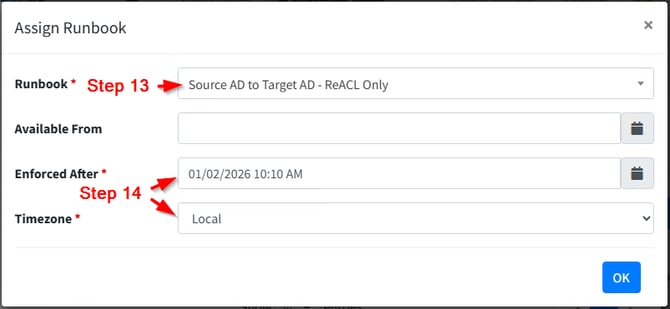
- Click Add to add your newly created ReACL only Runbook.
- Select the date and time for the Runbook to start:
- To run as soon as possible, schedule it in the past.
- To run on several file servers across the globe simultaneously, select UTC time.
- To process the Runbook using each file server's local time zone, select Local.
- Add the file servers to the Batch.
What should you check if the ReACL Runbook does not apply permissions as expected?
If permissions are not being added after the Runbook runs, verify the following:
- Confirm the agent is deployed and running on the target file server.
- Check that Only add permissions is selected on the Permission Updates tab — not a full repermission option.
- Verify that the Batch is assigned to the correct source and target directories.
- Ensure the scheduled start time has passed; if you want immediate execution, set the start time in the past.
- Review the agent logs on the file server for specific error output.