
💡 Tip: Use the Architecture Advisor
Every migration scenario is unique. If you are unsure exactly which components or firewall ports your project requires, we highly recommend running through the PowerSyncPro Architecture Advisor first. This interactive tool will help you map out your specific infrastructure before you begin opening ports.
What is a PowerSyncPro Endpoint?
In PowerSyncPro, an "endpoint" is the web server URL that your remote workstation agents or directory sync agents use to communicate with the central PowerSyncPro Server.
Because devices and agents may be located off-network, changing join states, or moving between tenants, it is critical that these endpoints remain highly available and properly secured. Different types of agents require different network protocols and endpoint configurations.
Quick reference: PowerSyncPro ports
| Port | Protocol / Service | Primary Use Case | Supported Agents & Services | Security & Configuration Notes |
|---|---|---|---|---|
| 443 | HTTPS (IIS Reverse Proxy) | Production workstation migrations over the public internet. | Migration Agent | Uses a publicly trusted 3rd-party SSL certificate. Routes traffic safely to the internal Kestrel backend. |
| 5000 | HTTP (Kestrel Backend) | Admin portal access, backend target for IIS, or LAN-only testing. | Migration Agent (PoC only), Admin GUI | Do not expose to the internet. Access the Admin GUI locally via http://localhost:5000. |
| 5001 | HTTPS / HTTP/2 gRPC (Kestrel) | Directory synchronisation and cross-network proxy routing. | Remote Sync Agent, Proxy Agent, Password Sync Agent | Cannot be routed through a standard IIS proxy. Firewall access must be strictly limited to trusted IP addresses. |
1. Migration Agent endpoints (standard HTTPS)
When executing a workstation migration, the PowerSyncPro Migration Agent requires continuous, uninterrupted access to the server to check its schedule (Batches), download instructions (Runbooks), and upload migration logs.
- The Recommended Setup: PowerSyncPro recommends the server be reachable from the public internet, fronted by your normal SSL and reverse proxy/WAF posture over standard HTTPS (TCP Port 443).
- How it Works: This allows your workstations to communicate securely over the internet using a friendly URL (e.g.,
https://psp.yourdomain.com/Agent) without needing to open custom ports on your external firewall.
Certificates for the IIS Reverse Proxy are handled via the Bindings with the IIS configuration utility.
⚠️ Important: VPN and Zero Trust considerations
The Migration Agent needs continuous connectivity to the PowerSyncPro server throughout the migration—and that window includes a brief period where the device's trust state changes (source domain → workgroup → target).
Always-on VPNs that depend on device trust, SSO posture, or domain membership often cannot survive that transition, leaving the device in a pending state, without reporting its progress.
If exposing the server publicly isn't an option, a reverse proxy that's reachable from your endpoints' networks (Azure App Proxy, Cloudflare Tunnel, NGINX) works—but you must plan carefully around any VPN that re-authenticates as device identity state changes mid-migration.
2. Directory sync & remote agents (gRPC)
If you are utilizing the Remote Sync Agent, Remote Password Sync Agent, or Proxy Agent—the communication requirements are different from the Migration Agent.
- The gRPC Requirement: These directory-level agents rely on gRPC over HTTP/2 to securely stream data to the PowerSyncPro server.
- Proxy Limitations: By default, this gRPC traffic operates directly on the Kestrel backend over TCP port 5001. Crucially, gRPC traffic cannot be routed through a standard IIS reverse proxy because IIS terminates and re-establishes the SSL connection, breaking the gRPC stream.
- 3rd-Party Reverse Proxies: While some modern external reverse proxies (such as Cloudflare) do support HTTP/2 and gRPC routing, configuring them for PowerSyncPro falls outside the scope of our standard configuration tools. It is technically possible, but it is not recommended or natively supported. Instead, Remote directory agents should either communicate directly with the server on port 5001, or be routed through the dedicated PowerSyncPro Proxy Agent.
Certificates for the gRPC endpoint are managed in C:\Program Files\PowerSyncPro\appsettings.json. You would want to edit the certificate defined in the entry for Port 5001.
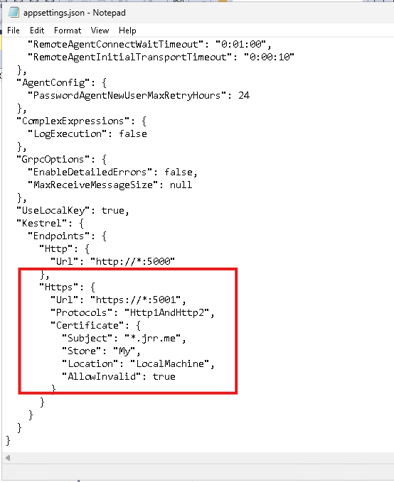
⚠️ CRITICAL SECURITY WARNING: Restrict access to port 5001
Because the Kestrel backend on port 5001 also hosts the underlying PowerSyncPro application, it is imperative that this port is strictly locked down at the firewall. Do not expose port 5001 to the open internet. Exposing this port globally will inadvertently expose your entire PowerSyncPro administrative GUI to the public internet. You must use your firewall to restrict port 5001 access only to the specific, trusted IP addresses where your Remote Sync or Proxy Agents reside.
3. Securing the PowerSyncPro admin portal
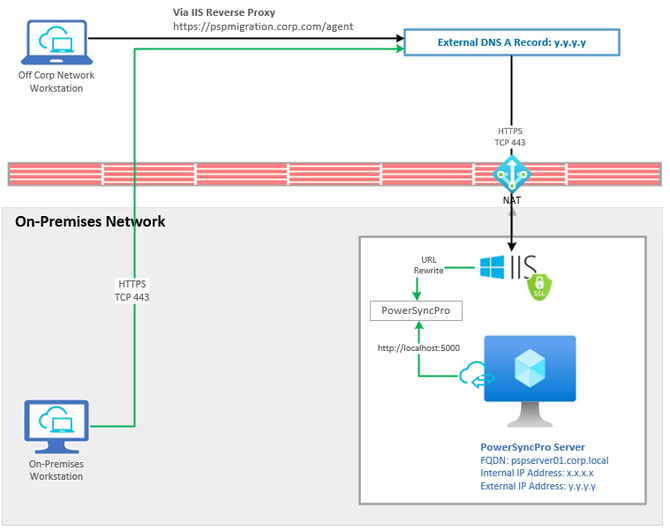
To maintain a strict security posture, we always recommend restricting external access to the administrative GUI.
- Restrict the Reverse Proxy: If you are exposing your server to the internet via a reverse proxy for your Migration Agents, that proxy must be configured to only allow access to the
/Agentendpoint. All other traffic directed at the application should be blocked externally. - Automated Configuration (web.config): If you utilize the PowerSyncPro Automated Install Script, this security restriction is handled for you. The script automatically configures an IIS rewrite rule via a
web.configfile (located inC:\inetpub\wwwroot) that explicitly blocks all external access to the admin interface. This ensures that only the/Agentendpoint is publicly accessible, while administrative access is restricted entirely tolocalhost(127.0.0.1).
4. The easy way: Automated install script & Azure image
Manually configuring IIS, Application Request Routing (ARR), URL Rewrite rules, and Kestrel SSL bindings can be complex. To completely streamline this process, administrators are strongly encouraged to use the PowerSyncPro Automated Install Script or deploy the pre-configured Azure Marketplace Image.
Using these automated deployment methods will securely handle your endpoint publishing for you:
- Automated Reverse Proxy & Server Hardening: The script automatically installs IIS, ARR, and URL Rewrite, instantly building the port 443 reverse proxy required for your Migration Agents. Alongside this, the script automatically applies recommended security hardening to the server (such as disabling legacy TLS protocols and weak ciphers).
- Seamless Certificate Management: The automation allows you to easily apply a provided PFX certificate (BYOC) or automatically generate and bind a free Let's Encrypt certificate to both IIS and the Kestrel backend.
- Kestrel Port Configuration: The script automatically injects your SSL bindings into the
appsettings.jsonfile, securing port 5001 for your Directory Sync agents without manual configuration.