
Overview
During a migration project it may become necessary to migrate an endpoint back to its original directory, or to another entirely different directory. Understanding how the PowerSyncPro Migration Agent references endpoints is essential for planning rollback and re-migration scenarios. With this knowledge, you can craft runbooks and batches that correctly target machines that have already been migrated.
IMPORTANT
The Migration Agent does not preserve a device’s pre-migration state. It does not capture configuration snapshots, store rollback images, or maintain a record of how the workstation was configured prior to migration.
As a result, a rollback is not a restoration of the original state. It is a new migration that migrates the device back to its original directory. Like any migration, it should be planned, tested, and validated with the same level of due diligence.
Key concept
When PowerSyncPro Migration Agent is installed on a machine, it is anchored on the ORIGINAL source directory of the machine. This does not change, even after the machine has been migrated to another directory.
This means when a machine successfully migrates to a target directory, PowerSyncPro still references the machine as if it was in the original source directory. Any runbooks that will perform subsequent actions on this system must be configured to take this into consideration.
Example - AD → Entra → AD migration
In this example, we will show how to perform a rollback after an Hybrid AD to Entra migration. These concepts can be used for any migration combination (AD -→ AD, Entra -→ AD, etc).
In this example an endpoint has already been migrated from JRR AD to JRR Entra and needs to be moved back to AD.
- Source: JRR AD
- Target: JRR Entra
Prerequisites
Licensing
- Your Migration license must include both the source / target domains as a source and target, this allows for bidirectional sync. If your license was not provisioned with this, please reach out to sales and we can remedy the situation.

Sync profile / translation table
- You must have a sync profile for each direction of the migration.
- This allows PowerSyncPro to generate a translation table for the rollback migration.
- Standard “Match Only” sync profile is fine, match on parameters similar to the standard Source → Target Sync Profile.
- Be sure to run a sync after creating the Sync Profile.
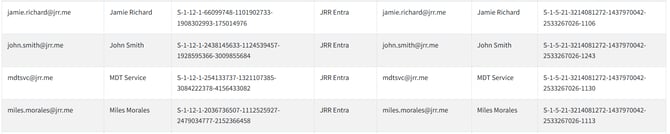
- Verify your translation table by navigating to Migration Agent > Translation Table
- Select the original Source (e.g. AD) as the target.
- Ensure that all users who need to rollback have an entry.


Considerations
- If you are returning to an AD the endpoint must have line-of-sight to domain controllers or use an Offline Domain Join to rejoin the domain.
- If you are using Offline Domain Join, please review the requirements in the Offline Domain Join documentation.
- An Offline Domain Join is only an option if the endpoint is joined to an Active Directory (as the original target). If the endpoint is currently joined to Entra, an Offline Domain Join Cannot be used.
- After an Offline Domain Join users will not be able to pull Group Policy until they have communication with a domain controller (e.g. VPN).
Runbooks and batches
Create a rollback runbook
- Create a New Runbook
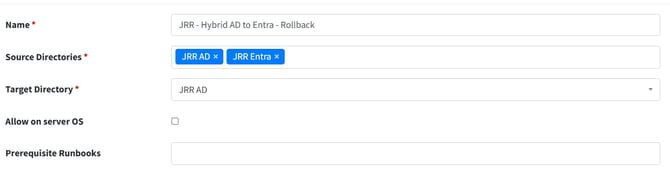
- Ensure that “Source Directories” includes your Original Source and Target
- In this Example, AD & Entra.
- Ensure that “Target Directory” is your Original Source
- In this Example, AD.
- Configure Runbook as normal, mirroring your original runbook with exception of the Device State tab.
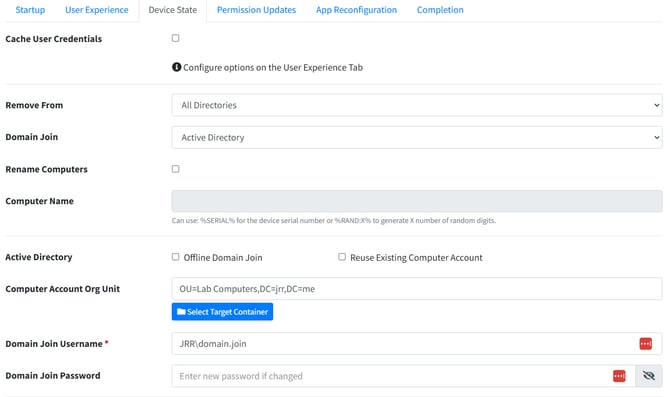
- Configure the Device State:
- Remove from “All Directories”
- Join Original Source Type
- In this Example: AD
- Configure options required to join the original source AD or Entra.
- Save the Rollback Runbook
Create a rollback batch
- Create a New Rollback Batch
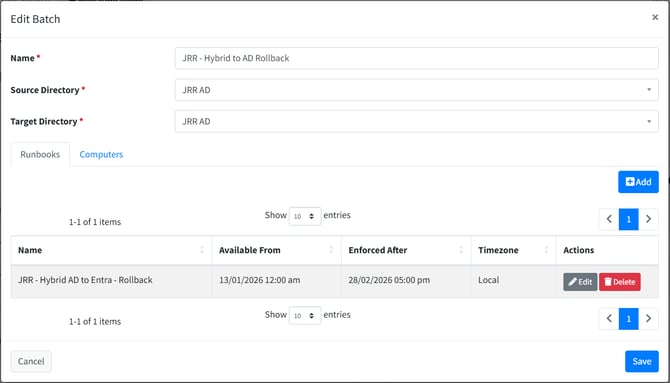
- Important: The batch configuration below is intentional — both the Source Directory and Target Directory are set to the original source. This is by design and required for the rollback to function correctly.
- Source Directory: Original Source Directory
- In this Example: AD
- Target Directory: Original Source Directory
- In this Example: AD
- Attach the Rollback Runbook created above.
- Schedule the batch and scope it to the endpoints that require a rollback.
- Save the Runbook
- NOTE: PowerSyncPro will report no translations available for this batch. This is expected - the migration will still work.

Run the migration
Once the rollback batch is scheduled and the endpoint is in scope, the PowerSyncPro Migration Agent will prompt the end user to complete the migration at the next login — just as it does for a standard migration. The user's profile should be present in the original directory after the migration completes.
Note: If the Migration Agent does not prompt automatically, verify that the endpoint falls within the configured migration window and that the correct runbook is attached to the batch.