
The PowerSyncPro Automated Installation Script enables rapid deployment of a fully functional PowerSyncPro instance — ready to synchronize directories and migrate workstations.
While the script handles most dependencies and certificate installation steps automatically, it’s important to review the PowerSyncPro system requirements in our documentation to ensure your environment meets performance and scaling needs. This includes database requirements. By default the script will build a default SQL Express installation which is limited by database size, be sure to review the documentation or reach out to support to ensure that SQL Express will meet your needs.
If you are installing PowerSyncPro in Microsoft Azure, please review our deployable Marketplace Image:
Azure Marketplace PowerSyncPro Server
PowerSyncPro installation requires a publicly trusted SSL certificate so that remote migration agents will trust the PSP server. This can be handled using a provided certificate (as a PFX file) or by utilizing Let's Encrypt. Let’s Encrypt is a free, automated, and open certificate authority that provides trusted SSL/TLS certificates for securing web services.
You can download the scripts required for installation at our GitHub repository here:https://github.com/PowerSyncPro/MigrationAgent/tree/main/AutoInstall_Script
Prerequisites
Server Requirements
- Windows Server 2016 or newer
- Administrator access
- Ability to run unsigned PowerShell scripts
- Internet connectivity for dependency downloads
- Port 443 must be open to the Internet so migration agents can reach the server.
- Port 80 must be open to the Internet if using a Let's Encrypt certificate.
Certificate Requirements
Option 1 – Let’s Encrypt
- Public IP with ports 80 and 443 open
- DNS A-record pointing to the server's public IP (e.g., psp.company.com)
- Valid email address for certificate renewal notifications
Option 2 – Bring Your Own Certificate (BYOC)
- PFX file containing your SSL certificate and private key
- Password for the PFX file
- DNS A-record pointing to your server’s public IP (e.g., psp.company.com)
- Port 443 must be open to the Internet so migration agents can reach the server.
Option 3 – Self-Signed (Not Recommended)
- Hostname for the certificate (e.g., psp-internal.company.com)
- Self-signed certificates are not recommended. Some PowerSyncPro features depend on trust relationships between clients and the server.
- If using a self-signed certificate, you may need to deploy it to machines running PSP agents in the root certification authority.
Key Notes Before You Begin
- By default, PowerSyncPro installs as the Local System account.
- To use a different account, specify -PSPServiceUser and -PSPServicePassword when running the script.
- If using a different account, that account must have permission to access to the SQL database.
- If using a default SQL Express installation, the script will provide required permissions.
- SQL Server Express 2025 will be installed automatically unless an existing SQL Server instance is detected.
- If a locally installed SQL instance is detected, the script will prompt for information about it to complete the install.
- The script configures an IIS reverse proxy that restricts administrative access to localhost (127.0.0.1).
- Use the WebConfig_Editor.ps1 script to allow other IPs or subnets to access the admin interface.
Installation Flags: External SQL Servers & Group Managed Service Accounts (gMSA)
As of January 2026 the installation script contains installation flags for advanced users which allow you to split operation of the script into two parts, Install Prerequisites and Completion Only. These flags are optional and should only be used in specific use cases.
- -PreReqOnly
- Runs all functions of the script up to where it would kickoff the MSI installation of PowerSyncPro. This includes installing all prerequisite software including IIS etc.
- When running in -PreReqOnly mode, the script will prompt for your intentions on SQL. You can choose a local SQL instance, install a new SQL Express instance, or choose to use an externally hosted SQL Server.
- -CompletionOnly
- Runs all functions of the script after the installation of PowerSyncPro. This includes setting up the IIS reverse proxy, hardening the server, and installing a selected certificate.
- Prompts which type of certificate you would like to install including LetsEncrypt, BYOC (PFX), and Self Signed.
With these installation flags you can now use the Automated Installation Script to expedite your installation, even in situations where you are using an externally hosted SQL instance or require use of a Group Managed Service Account (GMSA).
- Run the Script in -PreReqOnly mode to install all prerequisite software for PowerSyncPro.
- Install PowerSyncPro manually via the MSI, pointing it to an external SQL instance or utilizing a GMSA.
- Run the Script in -CompletionOnly mode to complete the installation, including configuring the reverse proxy and installing certificates.
gMSA Information: Setting up and Utilizing a Group Managed Service Account (gMSA)
Installation Steps
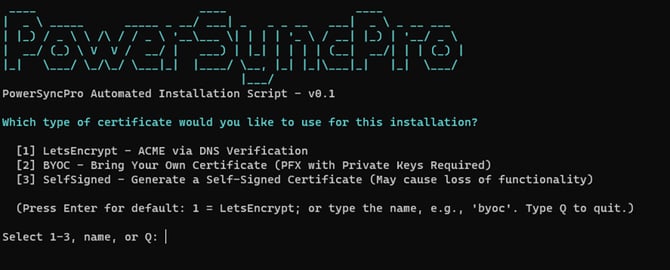
- Download PSP_AutoInstall.ps1 from the PowerSyncPro GitHub repository.
- Save the script in an accessible directory (e.g., C:\Temp).
- If using a PFX certificate, place the .pfx file in the same folder.
- Open PowerShell as Administrator and navigate to the script directory.
- If unsigned scripts are blocked, run: Set-ExecutionPolicy Bypass
- Execute the script: .\PSP_AutoInstall.ps1
- Optional parameters for a custom service account:
.\PSP_AutoInstall.ps1 -PSPServiceUser "DOMAIN\User" -PSPServicePassword "MySecurePassword123"
- Optional parameters for a custom service account:
- Let the script perform pre-checks (OS version, credentials, ports, SQL detection).
- Choose your certificate method (Let’s Encrypt, BYOC, or Self-Signed).
Once certificate setup is complete, the script installs all dependencies, configures IIS, and deploys PowerSyncPro. Installation typically takes 15–30 minutes, depending on server performance. Please note the default login / password when the script completes, be sure to change it!
Post-Installation Configuration
- Only localhost is allowed administrative access by default.
- The migration agent endpoint (/Agent) remain publicly accessible.
- To allow additional hosts or subnets, use PowerShell:
- Add: C:\Scripts\WebConfig_Editor.ps1 -AddAllowedAddress 10.0.0.0/8
- Remove: C:\Scripts\WebConfig_Editor.ps1 -RemoveAllowedAddress 10.0.0.0/8
- View: C:\Scripts\WebConfig_Editor.ps1
Certificate Maintenance
Let’s Encrypt
- Let's Encrypt certificates typically have an expiration timeframe of 90 days after issuance.
- A scheduled task is installed that runs every 7 days.
- When renewal is due, it executes C:\Scripts\Cert-Puller_PoshACME.ps1 to renew the certificate.
Bring Your Own Certificate (BYOC)
- Use C:\Scripts\Cert-Renewer.ps1 to install a renewed PFX and update IIS + PowerSyncPro bindings.
Components and Dependencies
Installed Automatically
- Microsoft .NET 8 Hosting Bundle
- Microsoft Visual C++ Redistributables
- Microsoft SQL Server Express (if no existing SQL Server detected)
- Internet Information Services (IIS)
- Web IP features
- Application Request Routing (ARR)
- URL Rewrite
PowerShell Modules and Tools
- Posh-ACME (for Let’s Encrypt installations)
- Dropped in C:\Scripts for future use:
- WebConfig_Editor.ps1 – manage reverse proxy access
- Cert-Puller_PoshACME.ps1 – automatic certificate management
- Cert-Renewer.ps1 – renew BYOC certificates
System Configuration
- PowerSyncPro service dependency on SQL startup
- Firewall rules for IIS and PowerSyncPro
- Hosts file updated with PowerSyncPro domain
- Hardened TLS/SSL configuration (legacy ciphers disabled)
Completion
After the installation completes, the script will display:
- PowerSyncPro service status
- Admin login URL
- Certificate validation summary
You can now access your PowerSyncPro instance and begin configuring directories, sync profiles, and migration runbooks.