
Why Use the PowerSyncPro Remote Sync Agent?
The PowerSyncPro Remote Sync Agent is a lightweight agent designed to solve complex network and security challenges during directory migrations. It is used in environments where direct line-of-sight between your central PowerSyncPro server and your local Active Directory is difficult, restricted, or undesirable.
You would typically deploy a Remote Sync Agent for the following key reasons:
- Synchronizing & Matching Across Disconnected Networks: During mergers or acquisitions, you are often dealing with entirely separate, disconnected networks that cannot be easily joined together. The agent allows you to seamlessly match existing identities and synchronize objects across these disparate environments without requiring complex VPNs or network trusts.
- The Perfect Companion for the Azure Marketplace Image (Isolated Deployments): PowerSyncPro is available as a pre-configured Azure Marketplace PowerSyncPro Server image in the Azure Marketplace. By utilizing the Remote Sync Agent, this Azure-hosted server can be deployed in a completely isolated network "island" or DMZ. The local agent simply communicates outbound to the central server, allowing you to securely synchronize data without ever exposing your on-premises network to the cloud.
- Simplifying Firewall Requirements: By installing the agent on a local Active Directory member server, you eliminate the need to open complex, high-risk Active Directory RPC and LDAP ports across your network boundaries. The local agent simply connects back to the central server over a single port.
- Enhancing Credential Security: The configuration and service account credentials required to access your local domain reside purely on the local Remote Sync Agent server itself. This adds a critical layer of security, as the central PowerSyncPro service does not hold or require direct knowledge of those local, highly privileged credentials.
Requirements and Considerations When Using the Remote Sync Agent
The PowerSyncPro Remote Sync Agent allows you to synchronize objects across disconnected networks and enhances security by ensuring that the configuration and credentials to access your local domains reside purely on the local agent server, rather than the central PowerSyncPro service.
When planning your deployment, please review the following hardware, network, and operational requirements.
Hardware and Software Prerequisites
- Server OS: The Remote Sync Agent can be installed on any supported Microsoft Active Directory Member Server.
- Hardware Sizing: The server hosting the agent should have at least 2 vCPUs and 4 GB of RAM. The server can be physical, virtual, or hosted in a private/public cloud.
- Software:
- Microsoft .NET 8.x Desktop Runtime is a strict prerequisite and must be installed prior to installing the agent.
- For Windows Server 2016 .Net Runtime 4.8 must also be installed.
Service Account Prerequisites
- Windows Service Logon Account The PowerSyncPro Sync Agent operates as a background Windows Service on the local member server. A dedicated service account is not required to run this service; during the MSI installation, you can simply select the option to run it using the built-in Local System account.
- If your organizational security policies require you to use a specific Service Account or a Group Managed Service Account (gMSA) instead:
- The account must be a member of the Local Administrators group on the member server running the agent.
- The account must have the local security policy right to "Log on as a service".
- If using a gMSA, only the username (e.g.,
CONTOSO\gMSA-PSP$) is required during setup.
- If your organizational security policies require you to use a specific Service Account or a Group Managed Service Account (gMSA) instead:
- Active Directory Connection Credentials (Required) Independent of how the local Windows Service is configured to run, the agent requires credentials to securely interact with your domain. After installation, you will use the PSP Sync Agent Configuration tool to provide a standard Active Directory Service Account.
- This account must have the appropriate delegated Active Directory permissions to read, create, and synchronize the objects, OUs, and attributes within the scope of your migration project.
- This account cannot be a gMSA - it must be a traditional service account.
- For migrations where only matching is required (Workstation Migration) you will likely only need an account capable of reading the directory. A typical non-privileged user account will likely work.
Network and Port Requirements
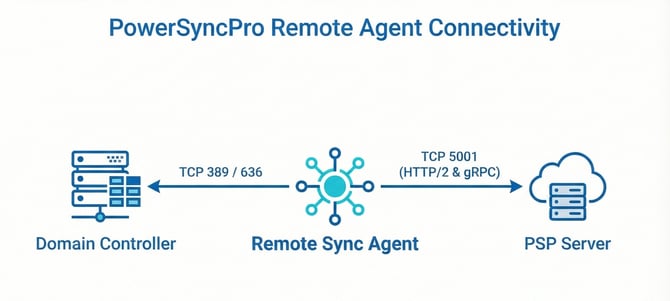
The Remote Sync Agent is designed to minimize firewall overhead but has specific protocol constraints:
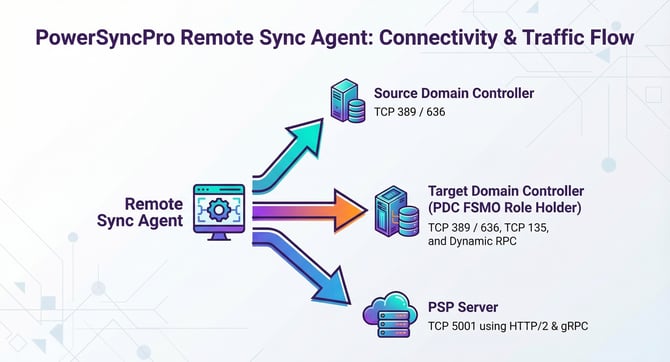
- PSP Server Communication: The agent connects outbound to the central PowerSyncPro Server (or Proxy Agent) using a single port, which defaults to TCP 5001.
- Protocol Constraints (gRPC): Because the agent uses gRPC over SSL (HTTP/2), the traffic must not pass through an appliance (like a reverse proxy, load balancer, or web application firewall) that terminates and re-establishes the SSL connection.
- Azure Front Door has HTTP/2 & gRPC support in private preview
- Cloudflare has HTTP/2 & gRPC support - but it has not yet been tested.
- Domain Controller Communication: The agent, by default, requires TCP 389 (or TCP 636 for LDAPS / Secure LDAP) to communicate locally with a domain controller.
- If your domain controllers are using non-standard ports for LDAP / LDAPS you can configure the agent to communicate on a non-standard port.
- SID History Requirements: If you are using the Remote Sync Agent to perform SID History synchronization, the agent's configuration tool must be populated with credentials for both the Source and Target domains and have communication to both. Furthermore, the agent must have TCP 135 and dynamic TCP RPC Ports open to communicate with the Target domain's PDC Emulator (FSMO role holder).
SECURITY WARNING: Restrict Access to Port 5001
When configuring inbound firewall rules on your central PowerSyncPro Server, ensure that TCP Port 5001 (the default Remote Agent communication port) is strictly locked down. Allow inbound traffic only from the specific trusted networks or IP addresses where your Remote Sync Agents reside.
Do not open Port 5001 to the public Internet at large. Because this port connects directly to the underlying PowerSyncPro service, exposing it globally will inadvertently expose the entire PowerSyncPro application—including your sensitive administrative logon portal—to the public Internet.
PowerSyncPro Server Requirements
Before installing the Remote Sync Agent on your local network, the central PowerSyncPro Server must be properly configured to accept inbound agent connections. Ensure the following server-side requirements are met:
- Enable Remote Agents During Server Installation: When running the initial PowerSyncPro Server MSI installer, you must select the option to enable Remote Agents. During this step, the server must be set up with a valid SSL certificate (either a self-signed or a trusted 3rd-party certificate) bound to the chosen endpoint port (default TCP 5001). This certificate must be trusted by the server where the Remote Sync Agent will be installed. (See "Security and Authentication" below for more details).
- Post-Installation Configuration: If the Remote Agents feature was not set up during the initial server installation, you do not necessarily need to reinstall. You can manually enable the SSL endpoint by modifying the
appsettings.jsonfile located in theC:\Program Files\PowerSyncProdirectory on the server. - Generate an Internal Communication Certificate: Within the PowerSyncPro administrative console, you must navigate to Remote Agents > Certificates and create a new active certificate.
- This is an internal application certificate and is completely different from your SSL web certificate. This specific certificate is used to securely sign and encrypt the payload communication between the PowerSyncPro Service and the Remote Agent after the initial registration process is complete.
Security and Authentication
- Trusted Certificates: The central PowerSyncPro server must have a valid SSL certificate that is available to and trusted by the server running the Remote Sync Agent.
- If using an untrusted certificate for PowerSyncPro, it must be installed in the Trusted Root Certification Authorities store on the system running the Sync Agent.
- Pre-Shared Key (PSK): During installation, you must provide a Pre-Shared Key generated from the PowerSyncPro console. This is used to encrypt the initial registration communication. Once registered, the agent generates its own local certificate for ongoing secure communication.
IMPORTANT: Using SID History with Remote Sync Agent
If you plan to synchronize SID History across forests using the Remote Sync Agent, there are specific architectural and network requirements you must follow:
- Single Agent Configuration: You cannot use separate, isolated agents for each domain. You must populate both the Source and Target domain controller connections (along with their respective service account credentials) into the same Remote Sync Agent configuration tool.
- Network Line-of-Sight: The member server running the Sync Agent must have network accessibility to both the Source and Target Domain Controllers simultaneously.
- Required Firewall Ports:
- LDAP (TCP 389 / 636): The Sync Agent requires standard or secure LDAP communication to both the Source and Target DCs.
- RPC (TCP 135 & Dynamic RPC): The Sync Agent requires RPC access specifically to the Primary Domain Controller (PDC) FSMO Role Holder in the Target domain.
- Note on PDC Communication: The Target PDC FSMO Role Holder must also be able to communicate directly with the Source PDC FSMO Role Holder over TCP 135 and Dynamic RPC ports for the SID History validation to succeed.
To migrate SID History, several prerequisites must be configured in both the source and target domains. These steps are detailed in the Directory Synchronization Prerequisites Guide, starting on page 15.
For a script to verify SID History prerequisites and verify your environment has been correctly configured for SID history, review this article: SID History Migration: Prerequisite Checker
Step-by-Step Setup: PowerSyncPro Remote Sync Agent
Part 1: On the PowerSyncPro Server
Before installing the agent locally, you must generate the necessary security credentials on your central PSP Server to allow the agent to connect securely.
1. Verify / Create Internal Communication Certificate This certificate is used to sign and encrypt the payload communication between the PSP Service and the Remote Agent after registration.
Understanding the Two Types of Certificates
It is important to note that the Internal Communication Certificate created here in the PowerSyncPro console is completely different from your server's SSL Web Certificate. They serve two distinct security purposes:
The SSL Certificate: This is your standard web certificate (either 3rd-party or internal PKI) bound to your endpoint (e.g., via IIS or Kestrel). It secures the underlying network transport layer (HTTPS/HTTP2) and must be trusted by the Windows OS of the server hosting the Remote Agent.
The Communication Certificate: This is an internal, application-level certificate generated directly within the PowerSyncPro interface. It is used exclusively by the PowerSyncPro application after the agent has registered to securely sign and encrypt the actual payload data being transmitted between the PSP Service and the Remote Agent.
- In the PowerSyncPro console, navigate to Remote Agents > Certificates.
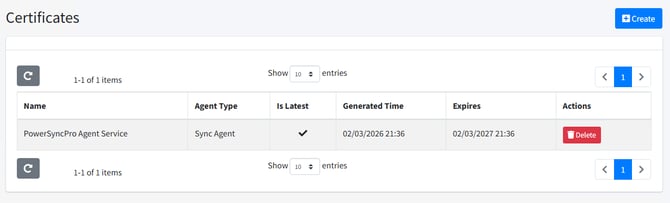
- Check if a valid certificate for the Sync Agent exists. If not, click + Create Certificate.
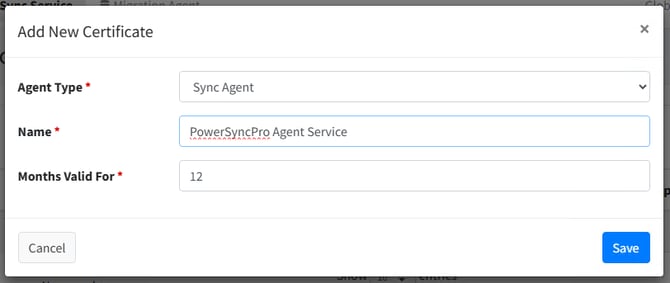
- Set the Agent Type to Sync Agent, accept or change the default name (PowerSyncPro Agent Service), set the validity period (defaults to 12 months), and click Save.
2. Create a Pre-Shared Key (PSK) The PSK is a one-time use password required to initially encrypt the registration communication between the local agent and the PSP server.
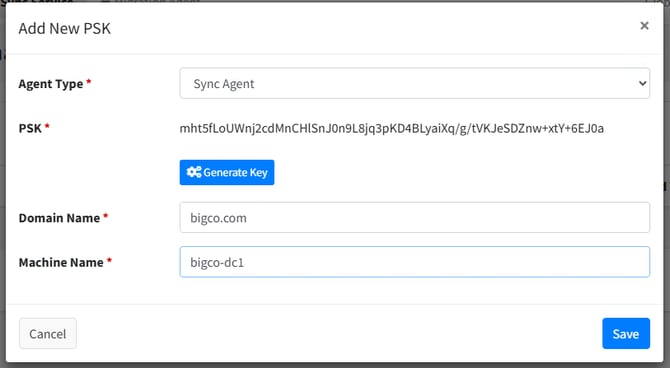
- Navigate to Remote Agents > Pre Shared Keys and click + Create.
- Configure the following details:
- Agent Type: Select Sync Agent.
- Domain Name: Enter the Fully Qualified Domain Name (FQDN) of the domain where the remote agent server resides.
- Machine Name: Enter the NetBIOS hostname only of the server that will run the agent (Do not use the FQDN here).
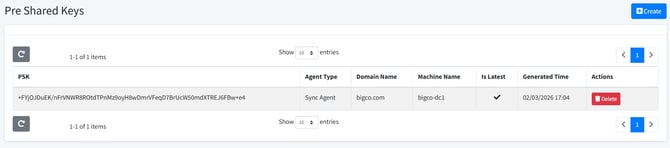
- Click Generate Key, copy the PSK to a safe location (you will need it shortly), and click Save.
Tip: Agent PSK is Single-Use
Once a Sync Agent successfully registers against the PowerSyncPro Server, the Sync Agent PSK will disappear. The PSK is designed for one-time use per Remote Agent to securely encrypt the initial registration. Once the agent registers and is accepted into the console, the key is automatically removed from the Pre-Shared Keys list.
Part 2: On the Server Running the Remote Sync Agent
Log on to the local Active Directory member server where you intend to install the Remote Sync Agent.
1. Confirm Prerequisites
- .NET Runtime: Ensure that the Microsoft .Net ASP.NET Desktop Runtime 8.x is installed on this server.
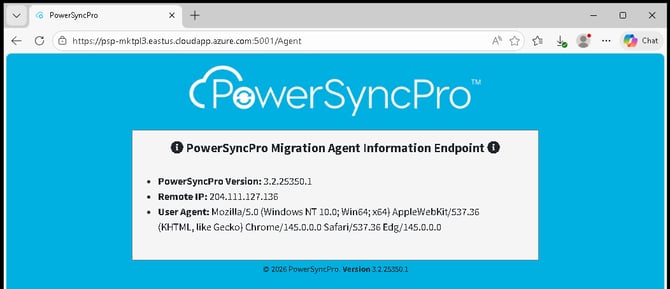
- Network Connectivity: Open a web browser on the server and navigate to your PSP Server's endpoint on port 5001 (e.g.,
https://psp.company.com:5001/Agent). You should see the PowerSyncPro Information Endpoint page load successfully without any SSL certificate warnings.
Critical: Resolve Connectivity and SSL Errors Before Proceeding
If the browser returns an error (such as "Cannot connect" or a timeout) or displays an SSL certificate warning (e.g., "Not Secure" or "Certificate Invalid"), you must troubleshoot and resolve these issues before running the installer.
The Remote Sync Agent utilizes gRPC over a strict SSL (HTTP/2) connection. If the endpoint is unreachable due to a firewall, or if the SSL certificate is not explicitly trusted by the local machine's Certificate Store, the agent installation will fail to register with the central PowerSyncPro Server. Do not continue until the page loads cleanly with a trusted padlock. See troubleshooting section for tips.
2. Install the Remote Sync Agent
- Download and run the
PSPSyncAgentInstaller.msi. - Follow the prompts to accept the destination folder, which will bring you to the Connection screen.
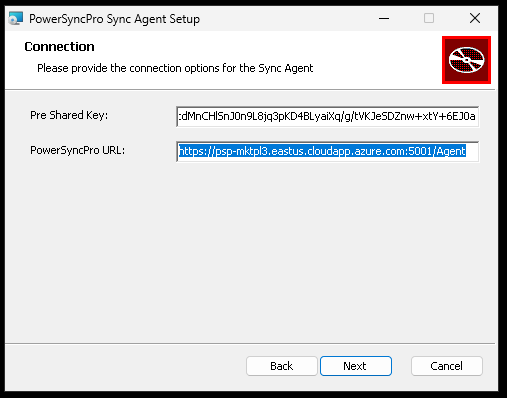
- Paste your Pre Shared Key and enter the PowerSyncPro URL.
Important: Agent URL Formatting
Ensure the Agent URL matches your PSP server's endpoint exactly and ends with /agent. Example: https://psp.company.com:5001/agent. Ensure there are no trailing characters after /agent
- Choose to run the service as a Local System or specify a Service Account (if using a gMSA, only the username is required), and click Install.
- If you are using a service account, the service account must have local administrator rights on the server running the sync agent.
- On the final screen, ensure Run Configuration Tool is checked, and click Finish.
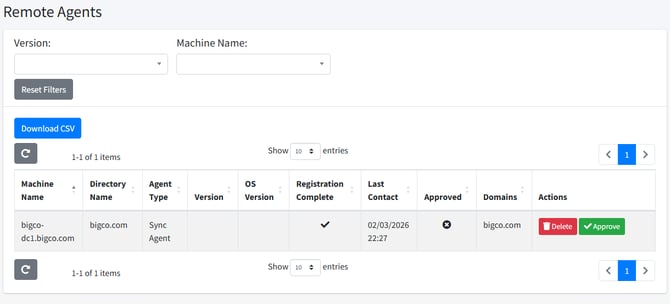
3. Approve the Remote Sync Agent Because Remote Agents have privileged capabilities, they require a double opt-in from the central console.
- Switch back to your central PowerSyncPro Server console.
- Navigate to Remote Agents > Remote Agents.
- Locate your newly registered server in the list and click the green Approve button. Click Yes on the confirmation prompt.
If you do not see the “Approve” request in the Remote agents section, stop and review troubleshooting steps below. You may need to check the “Failed Communications Report” within the PowerSyncPro interface, or the Application Event Viewer on the server running the Sync Agent.
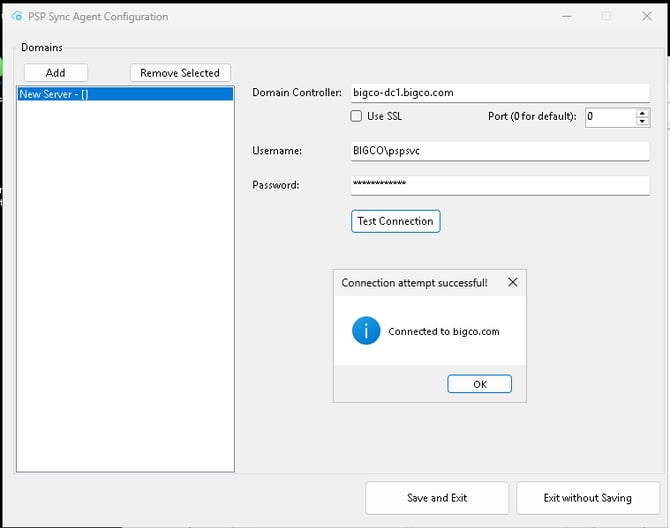
4. Setup the Active Directory Connection Return to the local Remote Sync Agent server. If you checked the box during installation, the PSP Sync Agent Configuration tool should be open (you can also launch it from the desktop shortcut).
- Click Add.
- Populate the following details for your local AD environment:
- Domain Controller: Enter the FQDN of the Domain Controller this agent should talk to.
- Use SSL: Check this box if your DC requires Secure LDAP (TCP 636).
- Username & Password: Enter the credentials of your AD Service Account.
- Click Test Connection to verify AD connectivity.
- Once successful, click Apply changes, followed by Save Changes and Save and Exit.
5. Confirm Connectivity and Operation To verify the agent is healthy and communicating:
- Windows Services: Open
services.mscand confirm the PowerSyncPro Sync Agent service is running. - Event Viewer: Check the Windows Application log for events from the
PowerSyncPro Sync Agentconfirming successful registration. - PSP Interface: In the central PSP console under Remote Agents > Remote Agents, check the "Last Contact" column to ensure the agent is actively checking in.
Part 3: Connecting your Directory to PowerSyncPro
Now that the Remote Sync Agent is installed, running, and approved, the final step is to map it to a Directory Profile within the central PowerSyncPro console. This instructs the central server to start routing synchronization tasks through your local agent.
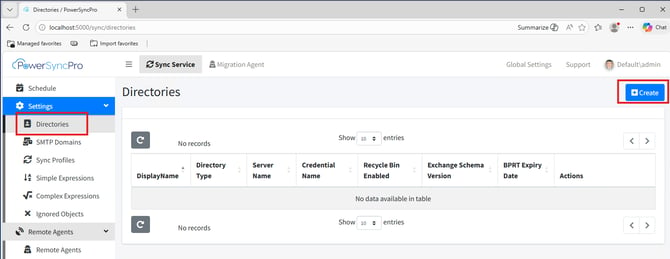
1. Create a New Directory Profile
- Log in to the central PowerSyncPro console.
- Navigate to Settings > Directories in the left-hand menu.
- Click the blue + Create button.
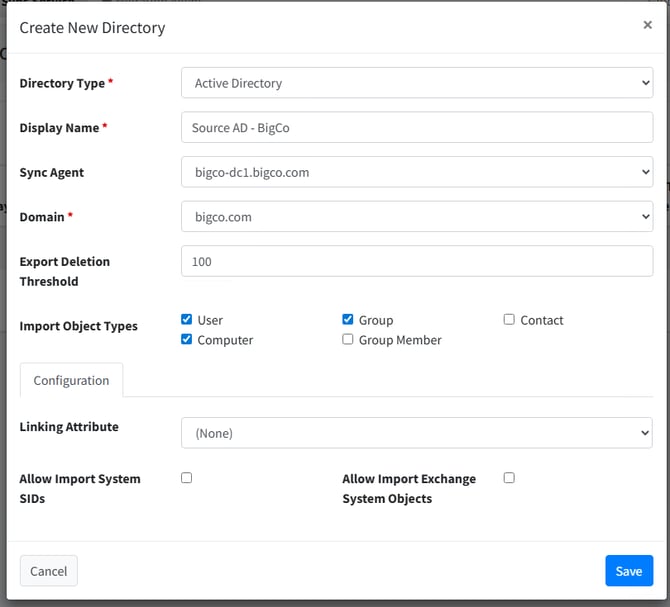
2. Configure the Directory Type
- Directory Type: Select Active Directory from the dropdown menu.
- Display Name: Give this directory a clear, meaningful name (e.g., "Source AD - BigCo") so you can easily identify it in your sync profiles and schedules.
3. Assign the Remote Sync Agent
- Sync Agent: Click the dropdown and select the Remote Sync Agent you registered and approved in Part 2.
Note: Hidden Credential Fields
You will notice that as soon as you select a Sync Agent from the dropdown menu, the fields for Server Name, Credential Type, Username, Credential, and Port will immediately disappear. This is by design. Because you are using a Remote Sync Agent, the connection and authentication credentials to access the Active Directory reside purely on the local agent server. The central console does not need (or want) to know them. Credentials stored in the Remote Agent to access the Active Directory do not leave the Remote Agent server and are not transmitted to the PowerSyncPro server.
4. Select Import Object Types
- Under Import Object Types, check the boxes for the objects you need to work with (e.g., User, Group, Contact, Group Member).
- Best Practice: Only select the object types you actually need to synchronize for your project, as limiting this improves overall sync performance. You only need to select Computer/Device if you are intending to use the PowerSyncPro Migration Agent for Windows 10/11 workstation migrations.
5. Save the Configuration
- Leave the remaining settings as default (unless you require specific Exchange System Object imports) and click Save.
- Upon saving, PowerSyncPro will validate the configuration.
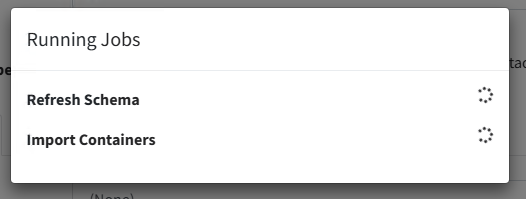
6. Success
At this stage, you have successfully established a secure connection between your central PowerSyncPro server and the remote Active Directory environment using the Remote Sync Agent. With your initial directory data imported, your environment is primed for the next phases of your project. You are now ready to begin configuring Sync Profiles, actively synchronizing directory objects, and laying the foundational groundwork to start your workstation migrations.
Troubleshooting Common Issues
Agent Issues
If the PowerSyncPro Sync Agent fails to connect, register, or stay running, the Windows Application Event Viewer and the Failed Communications Report in PowerSyncPro are your primary diagnostic tools. The agent logs its activities, registration attempts, and connection failures to the Application Event Viewer. The server logs any failed attempts to bind against the server to the Failed Communications Report.
Agent Refuses to Install
The Sync Agent MSI fails to install after providing the PSK and you are running Windows Server 2016. When reviewing MSI install logs you find errors about “validatePSK” failing.
Resolution: Windows Server 2016 lacks .Net Runtime 4.8 for the Migration Agent MSI installer. Install .Net Runtime 4.8, reboot the server, and attempt the installation again. https://dotnet.microsoft.com/en-us/download/dotnet-framework/net48
Untrusted SSL Certificate
If the agent reports it is unable to connect due to an untrusted SSL certificate on the PowerSyncPro server, you will see a gRPC exception for errors in the certificate chain.
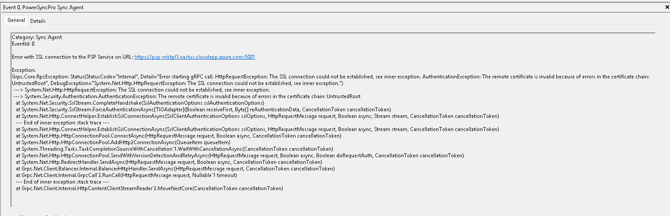
Category: Sync Agent
EventId: 0

Error with SSL connection to the PSP Service on URL: https://<PSP_SERVER_FQDN>:5001

Exception:
Grpc.Core.RpcException: Status(StatusCode="Internal", Detail="Error starting gRPC call. HttpRequestException: The SSL connection could not be established, see inner exception. AuthenticationException: The remote certificate is invalid because of errors in the certificate chain: UntrustedRoot", DebugException="System.Net.Http.HttpRequestException: The SSL connection could not be established, see inner exception.")
 ---> System.Net.Http.HttpRequestException: The SSL connection could not be established, see inner exception.
 ---> System.Security.Authentication.AuthenticationException: The remote certificate is invalid because of errors in the certificate chain: UntrustedRoot
   at System.Net.Security.SslStream.CompleteHandshake(SslAuthenticationOptions sslAuthenticationOptions)
   at System.Net.Security.SslStream.ForceAuthenticationAsync[TIOAdapter](Boolean receiveFirstByte, Byte[] reAuthenticationData, CancellationToken cancellationToken)
   at System.Net.Http.ConnectHelper.EstablishSslConnectionAsync(SslClientAuthenticationOptions sslOptions, HttpRequestMessage request, Boolean async, Stream stream, CancellationToken cancellationToken)
 --- End of inner exception stack trace ---
   at System.Net.Http.ConnectHelper.EstablishSslConnectionAsync(SslClientAuthenticationOptions sslOptions, HttpRequestMessage request, Boolean async, Stream stream, CancellationToken cancellationToken)
   at System.Net.Http.HttpConnectionPool.ConnectAsync(HttpRequestMessage request, Boolean async, CancellationToken cancellationToken)
   at System.Net.Http.HttpConnectionPool.AddHttp2ConnectionAsync(QueueItem queueItem)
   at System.Threading.Tasks.TaskCompletionSourceWithCancellation`1.WaitWithCancellationAsync(CancellationToken cancellationToken)
   at System.Net.Http.HttpConnectionPool.SendWithVersionDetectionAndRetryAsync(HttpRequestMessage request, Boolean doRequestAuth, CancellationToken cancellationToken)
   at System.Net.Http.RedirectHandler.SendAsync(HttpRequestMessage request, Boolean async, CancellationToken cancellationToken)
   at Grpc.Net.Client.Balancer.Internal.BalancerHttpHandler.SendAsync(HttpRequestMessage request, CancellationToken cancellationToken)
   at Grpc.Net.Client.Internal.GrpcCall`2.RunCall(HttpRequestMessage request, Nullable`1 timeout)

--- End of inner exception stack trace ---

at Grpc.Net.Client.Internal.HttpContentClientStreamReader`2.MoveNextCore(CancellationToken cancellationToken)
Resolution:
- Verify DNS is correct
- Fix the Certificate
- Install a Trusted Third-Party SSL Certificate on the PowerSyncPro Server
- Install the self-signed certificate into the root certificate store of the server running the Sync Agent
- Restart the Sync Agent service.
See below in the SSL troubleshooting section for instructions on how to fix this.
Incorrect Pre-Shared Key (PSK)
If the agent fails to register due to an invalid, mistyped, or already-used PSK, you will see a registration failure event.
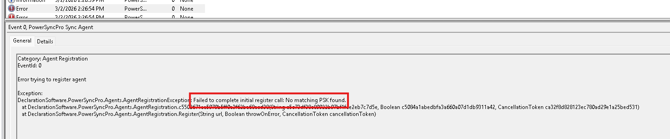
Category: Agent Registration
EventId: 0

Error trying to register agent

Exception:
DeclarationSoftware.PowerSyncPro.Agents.AgentRegistrationException: Failed to complete initial register call: No matching PSK found.
   at DeclarationSoftware.PowerSyncPro.Agents.AgentRegistration.ValidatePreSharedKey(String agentId, Boolean allowRegistration, CancellationToken cancellationToken)
   at DeclarationSoftware.PowerSyncPro.Agents.AgentRegistration.Register(String url, Boolean throwOnError, CancellationToken cancellationToken)
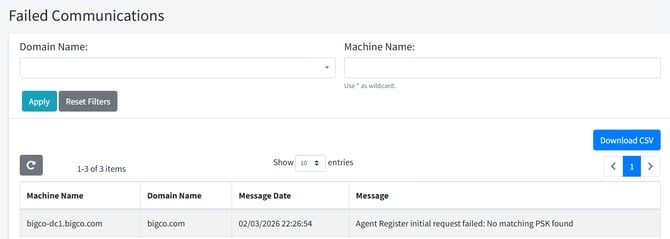
Resolution: You do not need to reinstall the agent to fix a bad PSK. You can update it directly in the registry:
- Generate a new PSK on the PowerSyncPro Server.
- On the agent server, open the Registry Editor (
regedit.exe). - Navigate to
HKLM\SOFTWARE\Declaration Software\Sync Agent. - Modify the PSK string value and paste in your new key.
- Open
services.mscand Restart the PowerSyncPro Sync Agent service to force a new registration attempt.
Agent Not Yet Approved
The agent may successfully contact the server but log an event indicating that it is waiting for administrative approval before it can receive configurations.
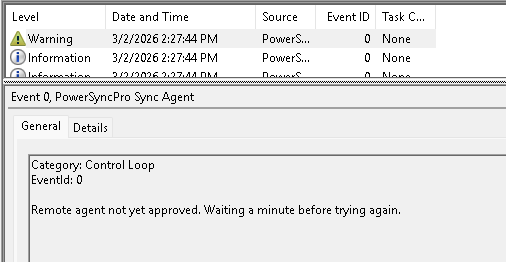
Resolution: Return to the central PowerSyncPro console, navigate to Remote Agents > Remote Agents, and ensure you have clicked the green Approve button for this specific machine.
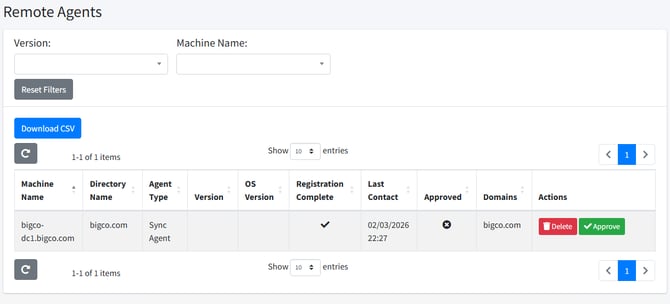 Agent not Yet Approved. Click Approve.
Agent Service Crashes / Fails to Start
If the PowerSyncPro Sync Agent Windows service crashes immediately upon startup or refuses to run, this is typically caused by missing underlying software frameworks. You may see an application error in the Event Viewer (such as a .NET Runtime error like Event ID 1023). This could also be caused by EDR / Antivirus / Application Whitelisting preventing the Sync Agent from running.
Resolution:
For missing frameworks: Verify that the Microsoft .Net ASP.NET Desktop Runtime 8.x has been installed on this server. The agent cannot execute without this specific version of the runtime. If it is missing, install the prerequisite and restart the service.
For EDR / Antivirus / Application Whitelisting: Check the event log and the console for your security suite of choice to determine if the Sync Agent binary is being blocked from running.
Agent does not Start, Application cannot be found, Unable to log .NET application events.
Installation completes normally and the PowerSyncPro Sync Agent appears to start but no log entries are created in the Application Event Viewer.
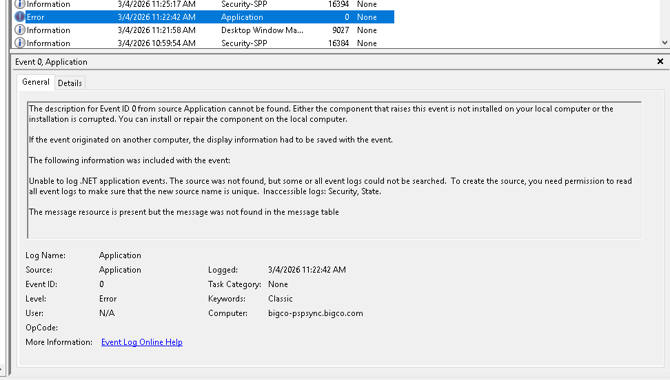
Log Name:      Application
Source:        Application
Event ID:      0
Level:         Error
Logged:        <TIMESTAMP>
Computer:      <SERVER_FQDN>

The description for Event ID 0 from source Application cannot be found. Either the component that raises this event is not installed on your local computer or the installation is corrupt. You can install or repair the component on the local computer.

If the event originated on another computer, the display information had to be saved with the event.

The following information was included with the event:

Unable to log .NET application events. The source was not found, but some or all event logs could not be searched. To create the source, you need permission to read all event logs to make sure that the new source name is unique. Inaccessible logs: Security, State.

The message resource is present but the message was not found in the message table.
Resolution: The service account being used to run the Sync Agent does not have local administrator rights on the server. Add the service account (standard or gMSA) to the Local Administrators group on the server and restart the service. The service should start normally.
Agent Certificate Cannot be Found, No PSK is Provided to Agent
The agent stops working and reviewing the Application Event Logs show that the agent says it cannot find the Agent Certificate and No PSK is available to the agent.
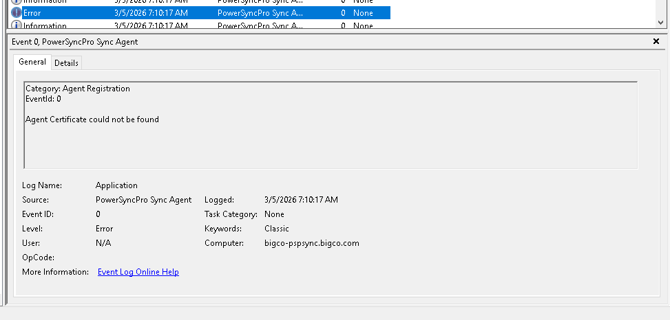
Resolution: Confirm which service account is being used to run the PowerSyncPro Sync Agent in services.msc. If the service is running using a service account (e.g. not LOCAL SYSTEM), then confirm that account has local administrator rights on the server. These errors are seen when the Agent is installed with appropriate local administrator rights, but those rights are removed. Re-add the service account to local administrators and restart the service.
Note: You should verify that policy is not removing the service account from the Local Administrators group to ensure that this error does not reoccur.
The Sync Agent cannot be selected after it has been successfully registered
The following error is recorded in the Sync Agent logs:
Sync Agent EventId: 0 Unexpected error with gRPC call: Status(StatusCode="Internal", Detail="Request protocol 'HTTP/1.1' is not supported.")
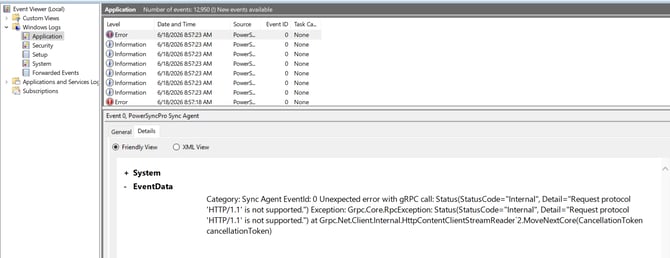
Cause: The Sync Agent was registered using an incorrect endpoint URL.
For example, the agent may have been registered with:
https://psp.domain.com/agent
The Sync Agent requires communication through the gRPC endpoint on port 5001. If the URL does not include the correct port, communication fails and the agent domain cannot be selected.
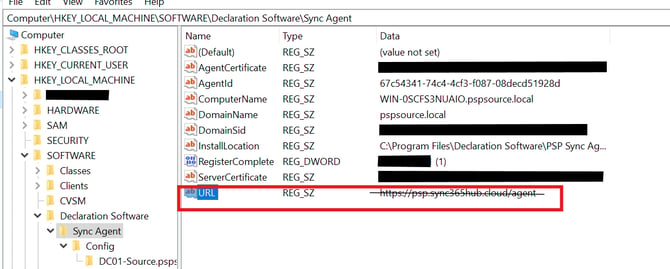
Resolution
- Open Registry Editor.
- Navigate to:
HKEY_LOCAL_MACHINE\SOFTWARE\Declaration Software\Sync Agent
- Edit the URL registry key and update its value to your gRPC port (for example 5001):
https://psp.domain.com:5001/agent
- Restart the PowerSyncPro Sync Agent service.
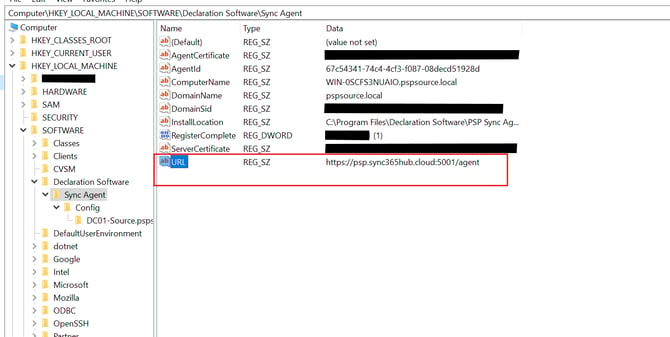
Untrusted SSL Certificate Issues
Because the Remote Sync Agent utilizes gRPC over HTTP/2, it requires a strictly trusted SSL connection to communicate with the central PowerSyncPro server. If the SSL certificate bound to the PowerSyncPro server's endpoint is not inherently trusted by the local agent machine, the connection will be rejected.
When this occurs, the agent will report that it is unable to connect, and you will see a gRPC exception in the Event Viewer citing errors in the certificate chain.
Verify DNS
Visit the Agent Endpoint of the PowerSyncPro Server in a web browser (e.g. https://psp.company.com:5001/Agent) and review the SSL certificate, typically by clicking the lock or info icon in the URL bar and selecting “View Certificate”. Ensure that the DNS name for the certificate matches the DNS name being used to access the server (or is a valid wildcard).
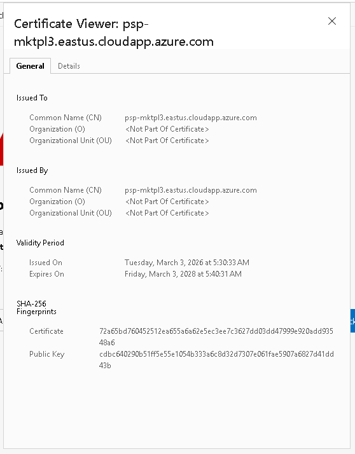 Example Self-Signed Certificate - Matches DNS
Using a Trusted Third-Party Certificate
If you are using a trusted certificate from a third-party certificate, verify that the certificate is current and has not yet expired.
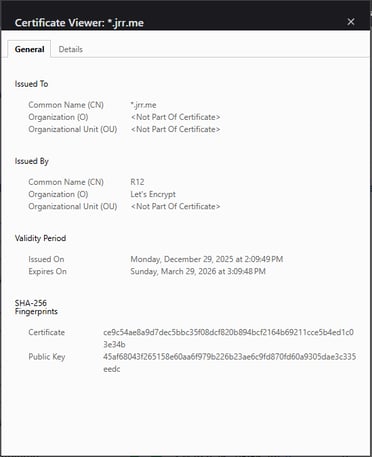 Example Trusted Certificate from LetsEncrypt
Using a Self-Signed Certificate - Installing in Certificate Store on Sync Agent
If you are using a self-signed certificate which matches the DNS name of your server, you will need to install it on the remote server running the Sync Agent in the Trusted Certification Authorities machine store. This will ensure that the server running the Sync Agent trusts the PowerSyncPro server.
On the PowerSyncPro Server:
- Launch the Local Machine Certificate Store MMC (certlm.msc)
- Navigate to your self-signed certificate (typically Personal -→ Certificates)
- Right click your self-signed certificate and select:
- All Tasks
- Export…
- Export the certificate as a .CER, exporting the private key is not required. No password should be required.
- Copy the certificate export to the server running the Sync Agent.
On the Sync Agent Server:
- Double click the certificate
- Click “Install Certificate”
- Select “Local Machine” as the store location.
- Place the Certificate in the Following Store:
- Trusted Root Certification Authorities
- Restart the PowerSyncPro Sync Agent Service
- Review Application Event Viewer to confirm that the gRPC connection to the server is now active.
Updating a Certificate
If you need to update your certificate to resolve issues, this can be done on the server in the “appsettings.json” in the PowerSyncPro installation directory. This is typically C:\Program Files\PowerSyncPro.
- Install / Generate the updated certificate (with Private Key) into the Local Machine Certificate Store (certlm.msc) on the server under Personal -→ Certificates
- Update appsettings.json with the Subject of the new certificate.
- Restart the PowerSyncPro Service
Update IIS SSL Bindings
If you update the backend certificate in appsettings.json, you may also need to update the SSL bindings in the IIS Reverse Proxy for Migration Agent access.
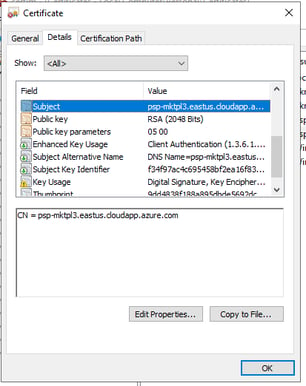 Example Certificate Subject Example Certificate Subject |
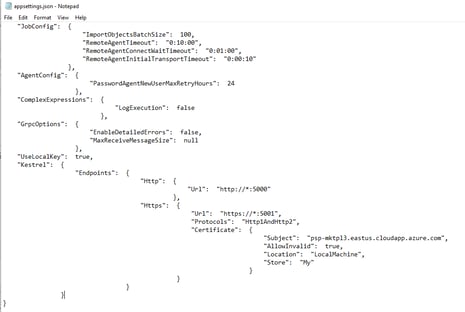 Example appsettings.json Example appsettings.json |
Still Need Help? Contact Support!
If you have gone through the troubleshooting steps above and the Remote Sync Agent is still failing to connect or register, please don't hesitate to reach out for assistance.
You can raise a support ticket with the team by visiting the support portal.