
Introduction
When configuring PowerSyncPro to migrate devices into an Entra target directory, you must generate a Bulk Enrollment Token (BPRT). Rather than relying on legacy package files, PowerSyncPro streamlines this process by connecting directly to Microsoft Graph to retrieve the token.
However, administrators may still occasionally encounter authentication or authorization errors during generation. Because PowerSyncPro interacts directly with these underlying Microsoft APIs, the process is governed entirely by Microsoft's strict security requirements. The limitations imposed here by Microsoft are the exact same limitations you would experience using traditional tools like Windows Configuration Designer (WCD) to generate a PPKG. It is important to note that these are Microsoft Entra ID API limitations, not limitations caused by PowerSyncPro. Below are the core requirements and the most common error codes encountered during BPRT generation.
For more information on error codes review this article on Microsoft Learn:
This is not a comprehensive list of error codes, etc.
BPRT generation requirements
Before attempting to generate a token, ensure your environment and the admin account you are using meet the following Microsoft requirements. Failing to meet these will result in the authorization errors listed further down this guide.
1. Access URL Requirements When creating a BPRT within PowerSyncPro, you must access the application directly from the host specified in your redirect URL, within the PowerSyncPro application registration within Entra. This is typically http://localhost:5000/. If you have changed this URL, be sure to use that URL or you will receive a blank browser window or error when attempting to generate the token.
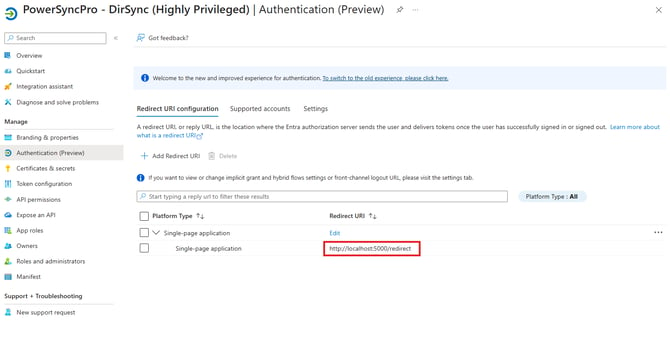 Example Redirect URL in App Registration: You must access PowerSyncPro from the base URL (e.g. http://localhost:5000) to generate a BPRT.
2. Account Restrictions The account used to authenticate and generate the token must meet these strict conditions:
- Must not be federated
- Must not be passwordless or use a Temporary Access Pass (TAP).
- Must be permitted to join devices to Entra, if device enrollment is restricted to specific users in your tenant's Device Settings.
3. Required Roles You do not need to be a Global Administrator. The account used must hold one or more of the following roles:
- Cloud Device Administrator
- Intune Administrator
- Password Administrator
- Global Administrator
Generating a BPRT without server internet access
If your PowerSyncPro server operates in an isolated environment and does not have direct internet access to authenticate and generate the token, you have two alternative options:
- Use a Vanity URL from a Local Machine: You can update your PowerSyncPro Entra App Registration to include a redirect URI that points to a vanity URL (or the local IP/hostname of your server). You can then access the PowerSyncPro web console from your own internet-connected workstation to complete the authentication flow and generate the token.
- Your workstation will communicate to Entra and relay the requested token to the isolated PowerSyncPro server.
- Import a Token from a .ppkg File: If routing traffic from an internet-connected device is not possible, or if your organization has policies that prevent third-party applications from communicating directly with your tenant in this manner, you can generate a traditional provisioning package (
.ppkgfile) using WCD on a separate, internet-connected machine. Once created, please submit a ticket at tickets.powersyncpro.com so our Support team can guide you through the manual process of extracting and importing the token from that package into your server.
Contacting support: Isolating API issues
Because PowerSyncPro utilizes the exact same Microsoft Graph APIs as Windows Configuration Designer (WCD), it shares the same environmental and tenant limitations.
If you have verified the requirements above and are still experiencing persistent BPRT authorization errors, our Support team may ask you to attempt generating a provisioning package (.ppkg file) directly through WCD to isolate the issue. It is highly advisable to try this WCD method first before reaching out to us.
If WCD successfully generates a token, there is no reason PowerSyncPro shouldn't work, which helps us quickly narrow down the root cause. If WCD also fails, it confirms the issue lies within your Entra ID configuration, CA policies, or account permissions, rather than the PowerSyncPro application.
Troubleshooting common errors
Error: AADSTS135010 (KeyNotFound)
Full Error: (135010) AADSTS135010 UserPrincipal doesn't have the key ID configured. (Note: This is frequently accompanied by the error "Authorization code not received from authorize endpoint call").
- The Cause: This error typically occurs when the organization has a restriction configured under “Users may join devices to Microsoft Entra”, and the admin account being used to generate the BPRT is not included in that allowed scope.
- The Solution: You must explicitly add the admin account used for the BPRT process into the inclusion list (the ability to join devices) to allow PowerSyncPro to successfully create the Bulk Enrollment account.
💡 Good to know: Browser caching
If you encounter this error and update the admin's device-join permissions, beware of browser caching. If the account is cached in the browser, you must forcibly log out of all sessions and clear the refresh token so the account can fully reauthenticate with its new permissions. This can take up to 2 hours before Entra ID serves the correct authorization codes.
Pro-Tip: To circumvent this wait time entirely, add a different authorized admin account to the "Users may join devices" permission—one who hasn't yet authenticated to the PowerSyncPro server—and use their credentials to generate the BPRT.
Error: AADSTS240004
Full Error: (240004) AADSTS240004 Authorization code not received from authorize endpoint call.
- The Cause: This is directly related to failing one of the account restrictions. Temporary Access Passes (TAP) and password-less sign-ins do not fully pass Multi-Factor Authentication (MFA) to the level required to allow the bulk enrollment process to complete. It can also occur if the account is from a federated domain.
- The Solution: Ensure you are using a standard username and password with an MFA prompt to authenticate, and verify the account is strictly cloud-native (not federated).
Error: AADSTS50079
Full Error: (50079) AADSTS50079 The user is required to use multi-factor authentication.
- The Cause: While it is critical for the authenticating admin account to be MFA-enabled, this specific error usually triggers after the underlying BPRT account (where the UPN begins with
package_) is successfully created. Thepackage_account subsequently fails Conditional Access (CA) because it is not explicitly excluded from your MFA CA policies. - The Solution: Because a fresh
package_account is dynamically created every time you try to generate a token, you cannot easily add the account to a CA exclusion group in advance. To allow the process to complete, you are required to briefly set the enforcing CA policy to "Report-only" while the BPRT generation finishes.
Errors: AADSTS900971 & AADSTS50011 (redirect URI mismatches)
Full Errors:
AADSTS900971: No reply address provided.
AADSTS50011: The redirect URI 'https://psp.company.com/redirect' specified in the request does not match the redirect URIs configured for the application. (Note: These misconfigurations can also result in a completely blank browser window during generation).
The Cause: These issues are directly related to the redirect URL. This occurs when the URI does not exist in the app registration, does not exactly match the URL used to access the PowerSyncPro console, or is misconfigured (e.g., the platform type is not properly set to a Single-Page Application).
The Solution: Review the PowerSyncPro App Registration in your Entra ID tenant. Ensure you have explicitly added a Single-page application platform configuration. The Redirect URI listed there (typically http://localhost:5000/redirect) must exactly match the base URL you are actively using to access the PowerSyncPro application. If you are using a vanity URL, it must be explicitly configured as a Single-page application redirect URI.
Additional known BPRT issues
Error: AADSTS90092 (non-retryable error)
- The Cause: On rare occasions, Entra ID is missing a required underlying Service Principal necessary for token generation.
- The Solution: You must create a Service Principal called
Microsoft.Azure.SyncFabric. You can check if it exists and create it using the following PowerShell commands:
# Check if the Service Principal exists: Get-AzureADServicePrincipal | Where-Object {$_.AppId -eq "00000014-0000-0000-c000-000000000000"} # If it does not exist, run this cmdlet to create it: New-AzureADServicePrincipal -AccountEnabled $true -AppId 00000014-0000-0000-c000-000000000000 -AppRoleAssignmentRequired $False -DisplayName Microsoft.Azure.SyncFabric -Tags {WindowsAzureActiveDirectoryIntegratedApp}