
Overview
This article outlines the requirements and methods required to migrate a system to an Active Directory target, when the remote system does not have line of site to the domain controller. This process has several requirements, so please thoroughly review this document to understand the process.
How Offline Domain Join works
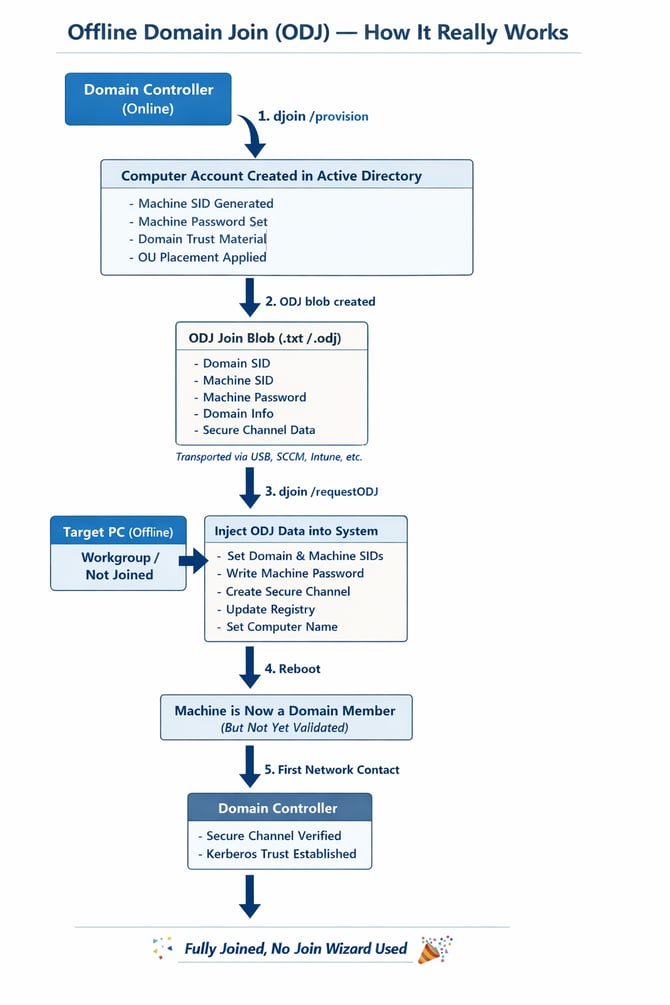
Offline Domain Join (ODJ) was introduced by Microsoft with Windows 7 and Windows Server 2008 R2 to solve a long-standing deployment problem: how to domain-join machines that do not yet have network connectivity to a domain controller. Instead of requiring a live LDAP or Kerberos connection during the join, ODJ allows administrators to pre-provision a computer account in Active Directory and generate a secure join package that contains the machine’s domain trust information, including its machine account, password, and secure channel secrets. This package is then imported into Windows during imaging, Autopilot, or first boot, at which point the device becomes a full domain member without ever contacting a domain controller. When the device later establishes network connectivity, the domain controller simply validates the already-established trust. PowerSyncPro leverages the Offline Domain Join functionality included within Windows to join a migrating machine to a new domain, without connectivity directly to that domain.
PowerSyncPro is able to cache credentials for the new Active Directory before a migration begins. This allows the user to login to the machine without connectivity to the domain controller. They can then run a VPN client or connect to a trusted network in order to contact a domain controller and begin pulling down Group Policy.
Process overview
- User caches their credentials for the new domain via the Migration Agent and starts the migration.
- Endpoint confirms that credentials are good by reaching out to target domain controller via trust with current AD.
- Migration begins, PowerSyncPro requests the Domain Controller perform an Offline Domain Join
- Offline Domain Join creates a new computer account in Active Directory.
- Active Directory generates the machine’s security identity, including its machine SID, machine account password, and secure channel trust material.
- This information is packaged into an Offline Domain Join (ODJ) blob (.odj or .txt file) by the Domain Controller.
- The ODJ blob is provided to PowerSyncPro.
- The ODJ blob is securely transferred to the user endpoint via the PowerSyncPro Migration Agent.
- The target endpoint, which is not yet joined to a domain, imports the ODJ blob from PowerSyncPro.
- Windows injects the domain trust into the local security subsystem, writing the domain SID, machine SID, machine password, and secure channel data into the system.
- The endpoint is rebooted, at which point it is already a full domain member, even though it has not yet contacted a domain controller.
- PowerSyncPro finishes the migration as per the runbook configuration.
- User can then login with cached credentials and connect to a trusted network using a VPN.
- When the device later connects to the network, the Domain Controller validates the pre-established trust and Kerberos secure channel.
- Once connected to the trusted network Group Policy can be pulled from an available domain controller.
Prerequisites
For PowerSyncPro
- PowerSyncPro Server with proper licensing
- Directory connectivity between PowerSyncPro server and source / target directories.
- Direct Line-of-Sight connectivity or via the Remote Sync Agent.
- Sync Profile between the Source / Target Active Directories to build a translation table.
- Properly configured runbooks to complete the migration (see below).
- Service account with permissions to join computers to the target directory.
Important: The service account used to authenticate PowerSyncPro against the target directory must have permissions to join computers to the domain.
For the Active Directory environment
- Trust between the source and target Active Directories.
- Users need to cache credentials from the target directory before the migration begins. There must be a trust in place to complete this task.
Important: Since a trust is required between the source and target domains to cache credentials, an Offline Domain Join migration is only possible when the source is an Active Directory. You cannot migrate from an Entra / Workgroup source to Active Directory using Offline Domain Join.
For endpoints during the migration process
- To cache credentials:
- Endpoints must have connectivity to a domain controller to authenticate the user against the target domain. This would typically mean the user needs an active VPN connection to an active domain controller.
- After a migration and user login, a method to contact a Domain Controller and pull policy:
- The user must have a method to communicate with a domain controller after the migration process completes. This is typically a VPN client or direct connection if the endpoint is on the corporate network.
Setup runbooks for an Offline Domain Join
Performing an Offline Domain Join requires two runbooks. One runbook presents the user with a prompt to cache credentials, the second completes the migration. It is import to use Prerequisite Runbooks to ensure that caching of credentials is completed before completing the migration.
Cache credentials runbook
Create a new runbook to cache credentials. These are the settings you need to focus on:
- Startup Tab
- Silent Mode
- Do Not Run Startup → Checked
- User Experience Tab
- QR Code URL (Optional)
- Cache Credentials
- Customizations Required, see below.
- Device State Tab
- Cache User Credentials → Checked
- Remove From: None
- Domain Join: None
- Permission Updates
- Don't update permissions
- App Reconfiguration
- Don't reconfigure applications
- Completion Tab
- Do Not Run Completion
Note: It is important to ensure that you do not run the Startup or Completion phases during the Cache Credentials runbook. This can cause unexpected behavior such as the lock screen being changed, users blocked from logging into the system, etc.
Customization required
During design / customization you can test dialog customization using our testing script. More information in this KB: Simulate user experience dialogues
The “Cached Credentials” prompt is what is presented to users when they are asked to cache their credentials to login to the target domain. You should customize this prompt to provide the correct amount of information to your users to ensure a smooth experience.
Fields to note:
- Window Title: Customizes the title of the window presented to users.
- Main Message: Is not used, can be left as default.
- Username Placeholder: The username auto-populated in the box will be pre-filled with the target user account from the PSP database, this does not need to be customized.
- Login Text: Text shown to the user.
- Logo: A 500x250 (or smaller) logo for your organization, typically the target organization.
- QR Code URL (optional): Renders a QR Code on the prompt along side the logo. This could link to your KB or a Sharepoint site about the migration that users can access from their phone.
Best Practices
- Ensure that screenshots of this message are included in communications to users so they expect this prompt.
- Include an organizational logo to build user trust.
- Alert the user they must be in-office or connected to the VPN before they enter their credentials.
- Endpoints must have connectivity to a domain controller to verify credentials as they are cached.
- Provide guidance to your support team to provide guidance if users have questions or see errors.
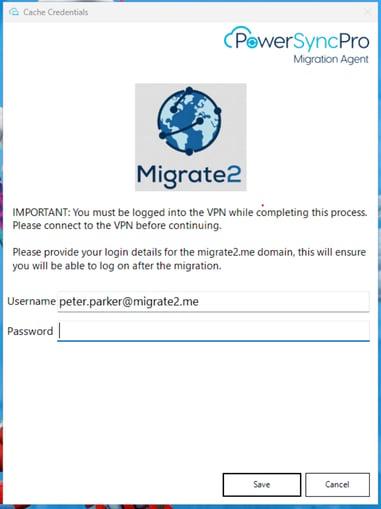 Example Cached Credentials Prompt Presented to User
Cache credentials runbook example
|
|
|
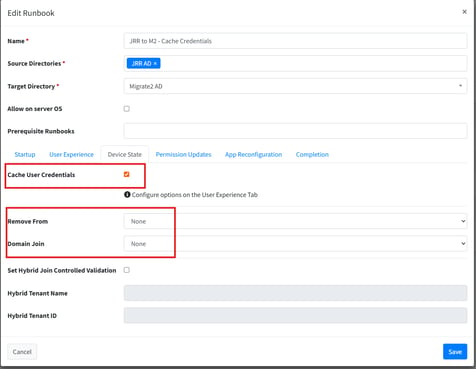 Cache Credentials: Device State Cache Credentials: Device State |
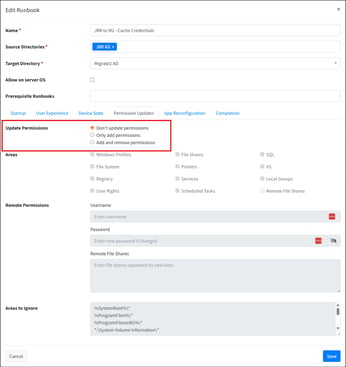 Cache Credentials: Permission Updates Cache Credentials: Permission Updates |
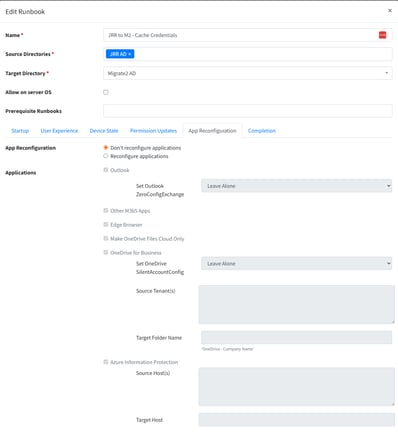 Cache Credentials: App Reconfiguration Cache Credentials: App Reconfiguration |
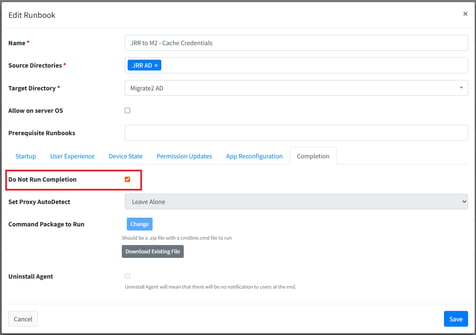 Cache Credentials: Completion Cache Credentials: Completion |
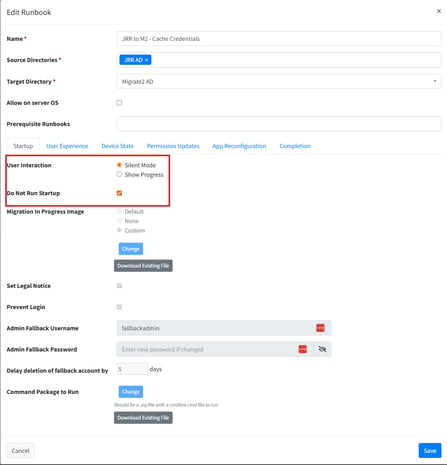 Cache Credentials: Startup
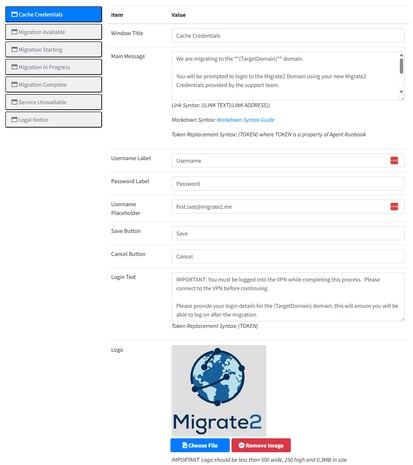 Cache Credentials: User Experience
Migration runbook
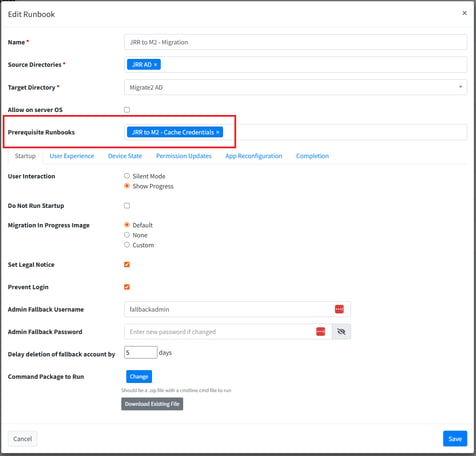
Create a new runbook to complete the migration. These are the settings you need to focus on:
- Prerequisite Runbooks: Cached Credentials Runbook (created above)
- Startup Tab
- Show Progress
- Do Not Run Startup → Not Checked
- Migration Image
- Default or Custom, this is the custom Windows lock screen shown to the user during this migration
- Set Legal Notice
- Recommended: Checked - Set the Legal Notice text in the “User Experience Tab”
- Shows the user a custom legal notice if they dismiss the lock screen while the migration is in progress.
- Prevent Login
- Recommended: Checked
- Blocks login for users that are in-scope of the migration while it is progressing
- Fallback Credentials
- Recommended: Set w/ Deletion Delay
- Creates a break glass / fallback local admin account on the endpoint during the migration.
- Command Packages
- Optional - Run scripts at the start of the migration.
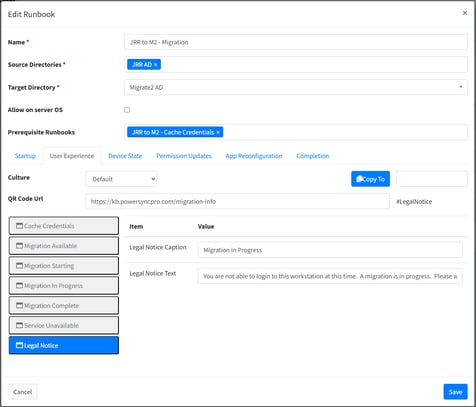
- User Experience Tab
- QRL Code URL (optional)
- Cache Credentials
- Not required, leave as default.
- Migration Available: Shown to users when they are first prompted a migration is available. Can be customized to add information about how to reach support.
- Migration Starting: Shown to users when they reach the enforcement time for a particular runbook. Can be customized to add information about how to reach support.
- Migration In Progress: Shown to users when the migration starts.
- Migration Complete: Shown to users when the migration is completed, after first login. Can be customized to add information about how to reach support. Also it is recommended to add instructions to the user to connect to VPN so Group Policy can be applied.
- Service Unavailable: Shown to users if a migration is in progress, a user is logged in, and PowerSyncPro cannot reach the migration server.
- Legal Notice: Text shown to users in a “Legal Notice” if they dismiss the lock screen while a migration is in progress.
- Example Settings:
- Legal Notice Caption: Migration in Progress
- Legal Notice Text:
- You are not able to login to this workstation at this time. A migration is in progress. Please wait until the "Migration in Progress" lock screen returns to normal and then attempt to login. If you see this alert for more than 60 minutes, reboot and then call Service Desk at +1-800-555-1212.
- Example Settings:
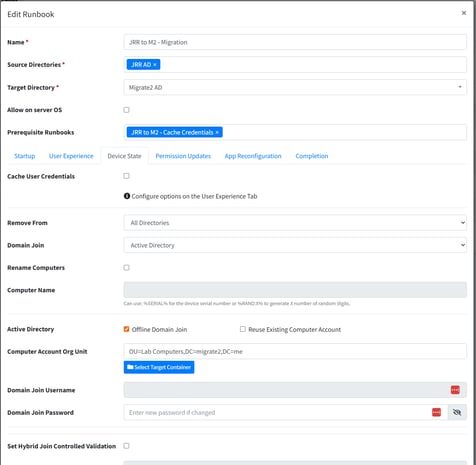
- Device State Tab
- Cache User Credentials → Unchecked
- Remove From: All Directories
- Removes the machine from all AD / Entra directories it is a member of.
- Domain Join: Active Directory
- Active Directory:
- Offline Domain Join → Checked
- Computer Account Org Unit → Set an OU where ODJ computers should be joined.
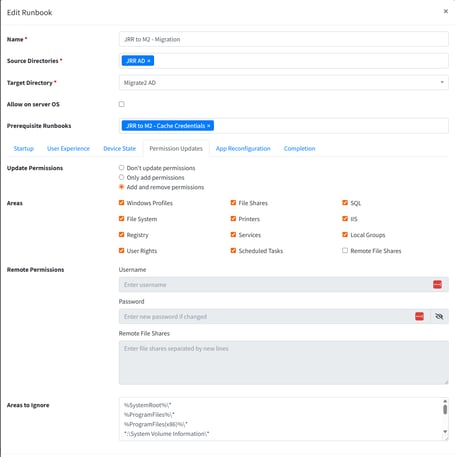
- Permission Updates
- Add / Remove Permissions
- Defaults should be fine.
- Add / Remove Permissions
- App Reconfiguration
- Resets Microsoft applications if you are also migrating users to a different M365 tenant during the migration, dependent on requirements.
- Apps / Settings will be reset to defaults. Review documentation to determine if this is necessary.
- Completion Tab
- Do Not Run Completion → Not Checked
- Command Package to Run
- Run scripts during the completion phase of the script, if required.
- Uninstall Agent → Not Checked
- We do not recommend uninstalling the agent immediately after a migration is completed as we cannot delete our fallback account, alert the user of migration completion, etc. Remove the agent with a dedicated runbook a few days after the migration is completed.
Best Practices
- Ensure that screenshots of these message are included in communications to users so they expect the migration.
- Ensure that your completion notification includes alerting the user that they need to connect to VPN to contact a domain controller and pull Group Policy.
- It may be beneficial to alert the user they should reboot their endpoint after some time of being connected to the VPN to ensure that GPO is applied.
Migration runbook example
 Migration Runbook: Startup Migration Runbook: Startup |
 Migration Runbook: User Experience Migration Runbook: User Experience |
 Migration Runbook: Device State Migration Runbook: Device State |
 Migration Runbook: Permission Updates Migration Runbook: Permission Updates |
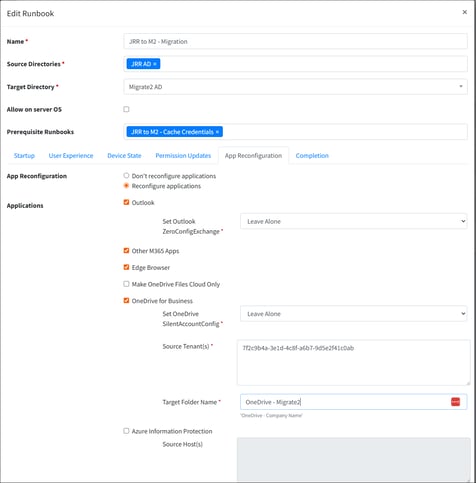 Migration Runbook: App Reconfiguration Migration Runbook: App Reconfiguration |
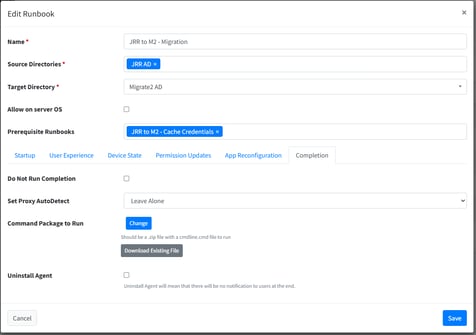 Migration Runbook: Completion Migration Runbook: Completion |
Setup batches for an Offline Domain Join
Both runbooks created above need to be combined into a batch that prompts the user for their cached credentials and begins the migration.
Combined batch
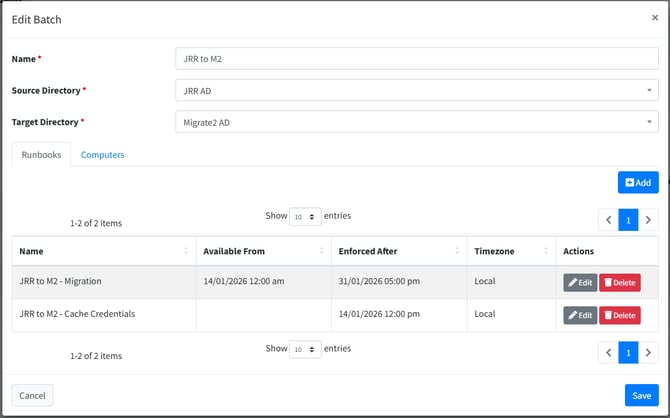
Create a New Batch and combine both runbooks into the same batch. Due to “Prerequisite Runbooks” option set in the batch, the migration will not be able to run until credentials are cached. Ensure the batch is assigned to target endpoints using direct add or a CSV.
Notes about timing batches
The “Cache Credentials” runbook should be added to the batch without an “Available From” time. This will ensure that it pops up without additional prompts.
The “Migration” runbook can be assigned an available from and enforced after time. Unless you are doing a “big bang” migration where you need all user endpoints to migrate at the same time, you should set the “Enforced After” for the “Cache Credentials” runbook to the same time as the “Available From” of the Migration Runbook. This will ensure that users are prompted to cache their credentials before they begin their migration.
Testing & due diligence
It is required that the migration process is tested before being rolled out to a large number of users. Utilize a test batch to migrate test machines and confirm functionality. When utilizing an offline domain join, it is essential to complete tests off the corporate network (e.g. on a guest network, or at the home of an IT staff member) to ensure that the process works fully end to end.
User experience
If configured correctly, the user experience should be as follows, this can be communicated to users in communications before the migration rollout begins.
Step 1: At the enforcement time of the “Cache Credentials” runbook, the user will be prompted to cache their credentials. The user will cache their credentials. Credentials will be validated against a domain controller and then cached locally on the system.
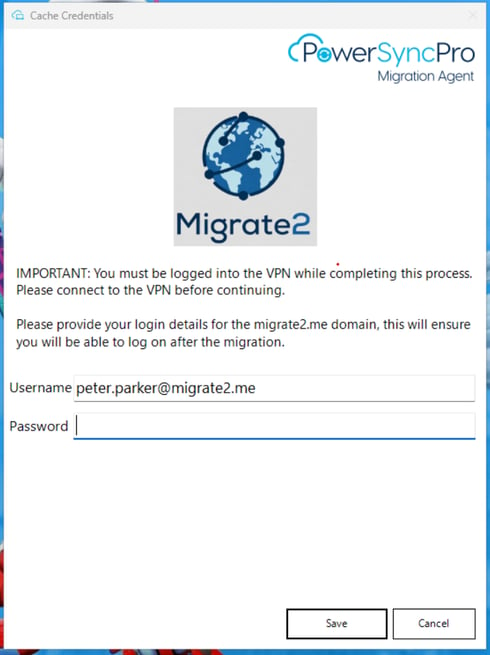 User is prompted to cache credentials
Step 2: At the available from time of the Migration runbook, the user will be alerted that they have a migration available. They will have the ability to start the migration or snooze the migration until the enforcement time of the runbook. If they wait until the enforcement time of the runbook, they will get an alert that the migration will begin within 60 minutes.
Note: The migration will not begin at the enforcement time if they user has not yet cached their credentials. We don't want to migrate them and have them be in a state where the user cannot login since they have no credentials on the system.
|
|
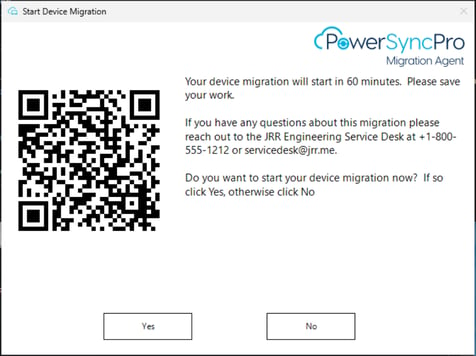 Migration Enforcement time has been reached, start within 1 hour. Migration Enforcement time has been reached, start within 1 hour. |
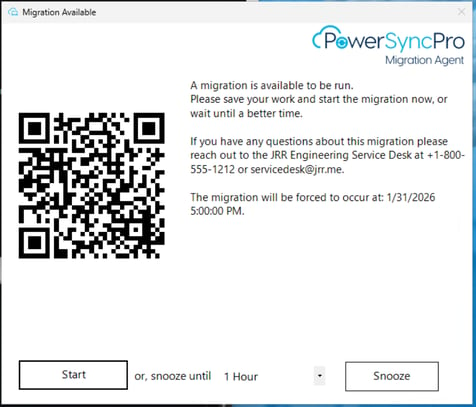 Migration is Available, Can be Snoozed by the User
Step 3: Migration begins. User is alerted the migration has started. The Migration Agent will prepare the endpoint for the migration as per the runbook, including removing it from the active directory, backing up resources, and doing general housekeeping to get the endpoint into the new directory. At this point the endpoint is removed from the existing AD and joined to a workgroup. The endpoint reboots to begin joining the new domain.
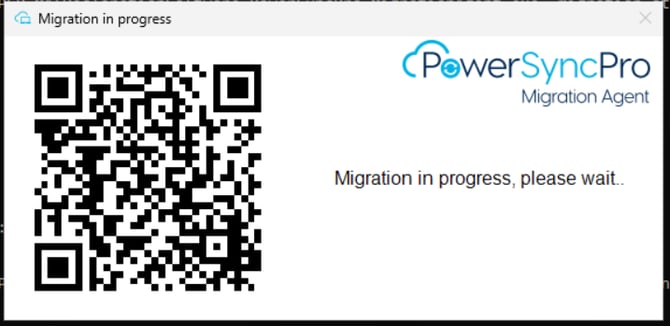
Step 4: Endpoint boots and shows the “Migration in Progress” lock screen. An Offline Domain Join request is initiated and the ODJ blob is delivered to the endpoint via PowerSyncPro. The endpointis now joined to the target domain, but has not yet communicated with the domain controller. The endpoint reboots to complete the domain join.
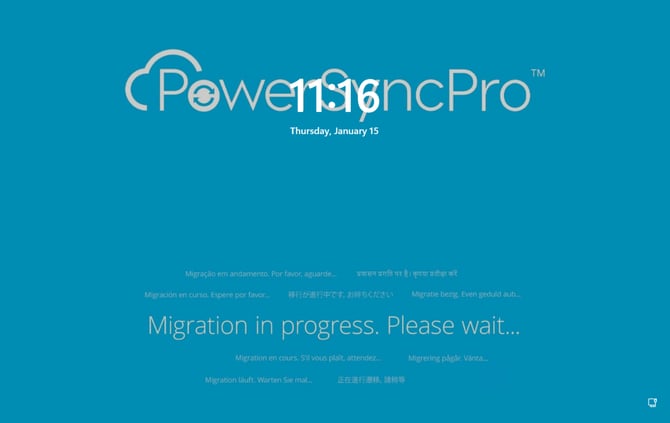
Step 5: Endpoint boots and shows the “Migration in Progress” lock screen. In the background the Migration Agent updating permissions (ReACL) all user files on the endpoint, including their user profile. Once the ReACL is completed the Migration Agent completes cleanup and housekeeping. The runbook is marked as complete and the endpoint reboots.
Step 6: Endpoint boots and shows the user a default login screen and the ability to login. They login using their cached credentials. They are logged into their profile and prompted with the “Migration Complete” notification. If the user is remote, and not on the corporate network, the user then needs to connect to VPN so the machine can contact a domain controller and pull group policy. It is recommended that user communications includes detail about this process.
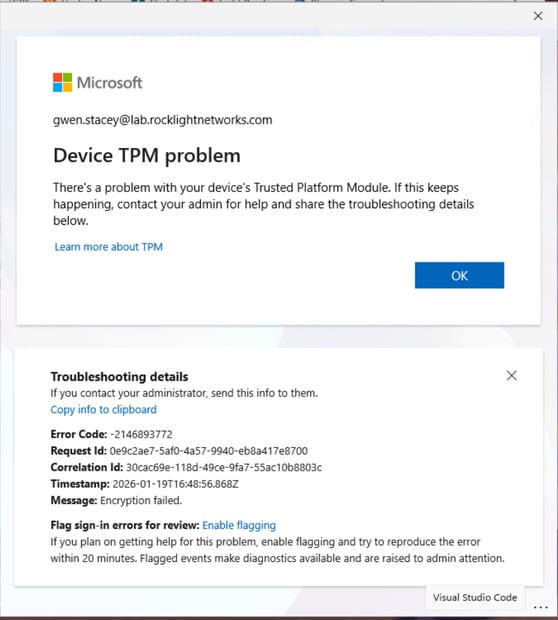
It is recommended that the first step after migration complete is to connect to the VPN then Lock / Unlock the workstation. This will ensure that the system has a secure channel to the domain controller. If this is not completed the user may see TPM issues when attempting to login to Microsoft Applications.
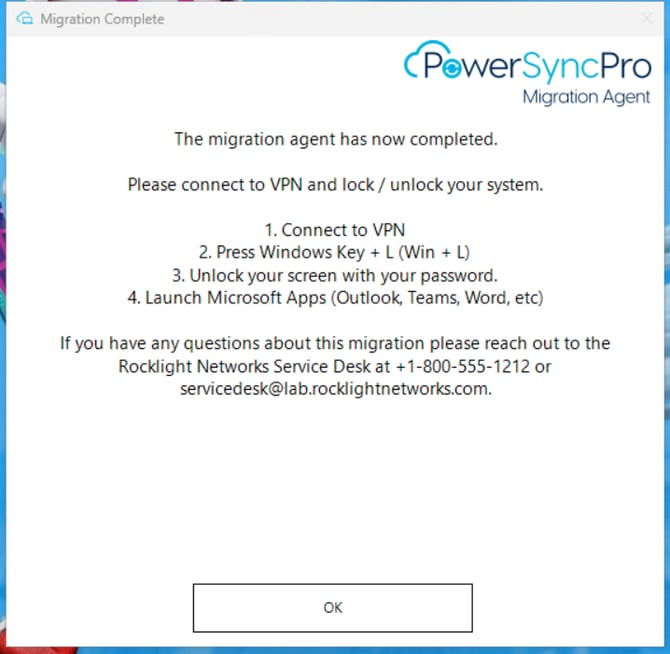
The migration is now complete.
Known issues / things to note
TPM issues after first login
If the user endpoint is disconnected from the corporate network (e.g. remote) and does not have connectivity to domain controllers, attempts to login to Microsoft Applications (Outlook, Teams, Word, etc) may be met with a TPM error. This error can be resolved by connecting to a VPN to provide access to domain controllers and locking / unlocking the workstation. This will ensure the machine is properly provisioned and secure channels are configured.
- Have user login to VPN
- Have user lock (Win + L) their workstation
- Have user unlock their workstation
- Attempt to login to Microsoft apps again.
It is recommended that user communications outlines this process to ensure a smooth migration experience.
Slow migration / performance issues after Offline Domain Join
If the user endpoint is disconnected from the corporate network (e.g. remote) and does not have connectivity to domain controllers, there might be delays in completing the migration and delays in first user login.
This issue is caused due to Windows attempting to reach out to domain controllers and failing. This activity will slow down the reACL / re-permission of user profiles and first logon since the system is attempting to reach out to domain controllers for security information. Once the system is connected to VPN and is able to pull policy from a domain controller, these issues will resolve.