Introduction
A seamless workstation migration requires clear, localized communication. The PowerSyncPro Migration Agent allows administrators to fully customize the dialog windows presented to end-users, ensuring that instructions are displayed in the user’s native language based on their device settings.
Because getting the messaging right is critical, PowerSyncPro provides the ability to preview these dialogs locally before ever assigning a runbook to a live machine. This article will guide you through configuring a multilingual runbook and using the Simulate-UserExperience.ps1 script to test your custom prompts.
Part 1: Configuring multilingual runbooks
By default, the PowerSyncPro Migration Agent utilizes the "Default" culture for its prompts. However, you can easily configure the runbook to display messages in any local language using ISO culture codes. The agent will automatically detect the language of the user's Windows machine and display the corresponding localized prompt.
Step 1: Identify the correct culture code
You must use the correct ISO culture code (e.g., fr-FR for French, es-ES for Spanish) to configure your runbooks. If you are unsure of the exact code, you can retrieve a full list of available cultures using Windows PowerShell.
Run the following command in PowerShell to list the available cultures:
Get-Culture -ListAvailable | Sort-Object DisplayName | Format-Table -AutoSizeLocate the target language in the output and note the exact value in the Name column.
If you would like to check the culture for a particular system, you can run the following command in PowerShell:
Get-Culture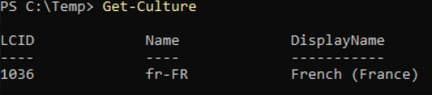
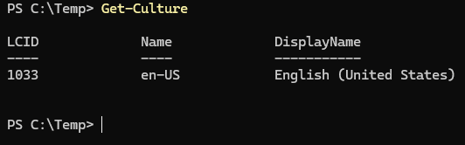
Example Cutlure for an endpoint configured for US English
💡 Good to know: Broad vs. Specific language targeting
When entering your ISO culture code, you have the flexibility to target specific regions or broadly cover a language. You can choose the full ISO code (e.g., fr-FR for French - France) to target a specific locale, or you can simply use the first part of the ISO code (e.g., fr) as a catch-all to cover all regional versions of that language (such as French Canadian, Belgian French, etc.).
Step 2: Duplicate the user experience profile
Once you have your culture code, navigate to your Runbook on the PowerSyncPro Server.
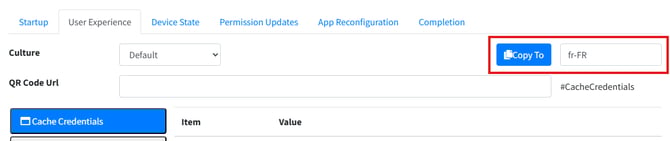
- Go to the User Experience tab.
- In the Copy To box, enter the culture code (e.g.,
fr, fr-FR, es, es-ES). - Click the Copy To button.
This will create an exact duplicate of your current Default user experience profile. Your new culture code will now appear in the Culture drop-down menu.
Step 3: Translate and customize
Select your newly created culture from the Culture drop-down menu. You can now navigate through the various prompt tabs (Migration Available, Migration Starting, Migration In Progress, Migration Complete) and translate the Window Title, Main Message, and Button Labels into the target language.
💡 Good to know: Variables and links in translations
When translating your messages, be sure to retain the core system variables (like {TargetDomain} or {StartDate}) and properly format your Markdown links for your IT Support desk (e.g., ((IT Service Desk)(mailto:help@contoso.com))).
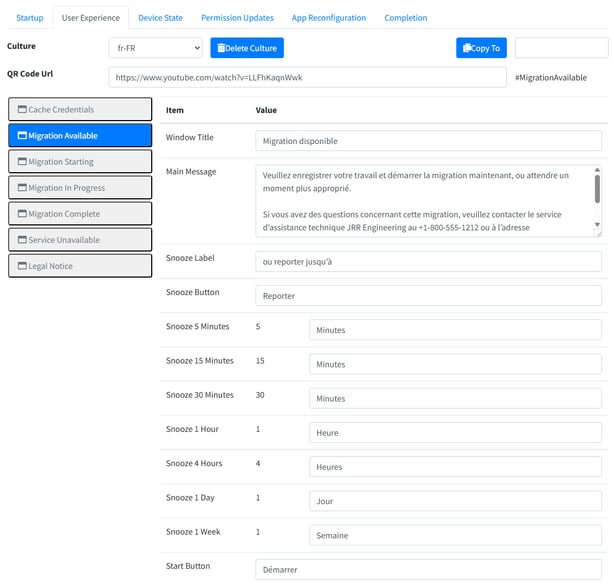 Migration Available Prompt translated to French (fr-FR)
Part 2: Testing with the Simulate-UserExperience script
Rather than deploying a test migration to preview your formatting, variables, and translations, you can use the Simulate-UserExperience.ps1 script. This script allows you to render the exact dialog boxes on your local machine exactly as the end-user will see them.
Download Simulate-UserExperience.ps1
Step 1: Prepare the simulation
To test your prompts, you will need to download the Simulate-UserExperience.ps1 script to your local testing machine.
Ensure you have your desired prompt text, button labels, and any custom QR code URLs ready. The simulation script will utilize these inputs to generate the native Windows UI prompts that the Migration Agent uses.
⚠️ Testing requirement: Ensure your testing machine is in-scope for the runbook
Before running the Simulate-UserExperience.ps1 script, confirm that your testing machine has been added to a batch for the specific runbook you want to test. The simulation script retrieves the runbook configuration from the Migration Agent on your local machine — if the device is not in scope, the agent will not have downloaded the relevant runbook, and the simulation will not reflect your intended prompts.
⚠️ Testing requirement: Match your OS language
Because the Migration Agent automatically detects the language of the Windows machine to display localized prompts, you must change your testing machine's OS language to match your target language before running the simulation.
You can verify that your testing machine has successfully adopted the new culture code by running the Get-Culture command in PowerShell.
Step 2: Execute the simulation script
Open an elevated PowerShell prompt and execute the Simulate-UserExperience.ps1 script.
# Example Script Execution
.\Simulate-UserExperience.ps1
Step 3: Review the dialogs
The script will request you choose a specific dialog.
- Formatting: Do the line breaks and Markdown bolding look correct?
- Translations: Does the text fit cleanly within the window without cutting off?
- QR Codes: Scan the QR code with your mobile device to ensure it resolves to the correct internal helpdesk URL and properly appends the anchor tags (e.g.,
#MigrationAvailable).
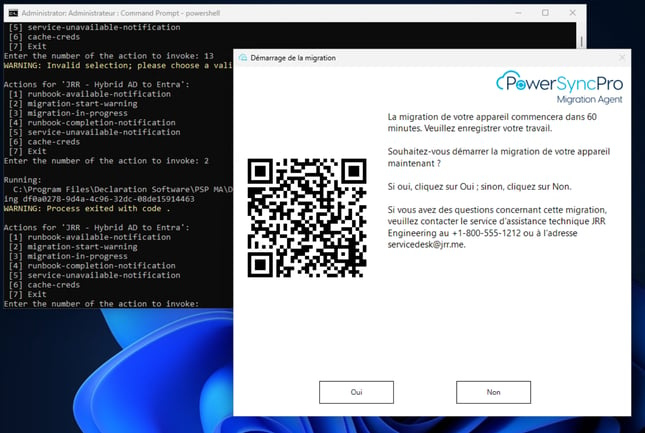 Simulate-UserExperience.ps1 Running with a French Translation of the Migration Starting Dialog
💡 Note on simulation behavior
When testing your custom prompts with the simulation script, clicking "Yes" or "Start" on a rendered dialog window will simply close the prompt. Because this is purely a visual simulation, it will not trigger any actual migration processes on your testing machine.
💡 Simulation flow for "in progress"
The "Migration in Progress" dialog is unique because it does not contain a call-to-action button. Consequently, when running the simulation script, the notification task will automatically terminate and close the window as soon as the prompt is successfully rendered.
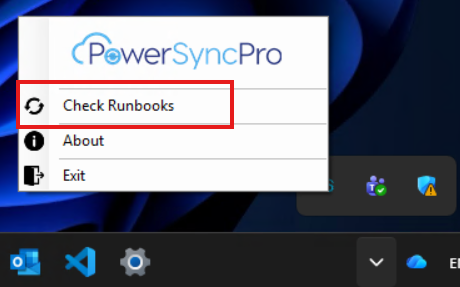
💡 Applying runbook updates to test machines
Every time you modify a runbook on the PowerSyncPro Server, you must manually trigger an update on your testing machine to see those changes reflected. Right-click the PowerSyncPro icon in the system tray and select "Check Runbooks" to immediately re-download the latest configuration. While the migration agent is designed to automatically pull down updated instructions on an hourly cycle, this manual check is the fastest way to verify your translations and formatting during the testing phase.