
The scenario
Following a workstation migration, the PowerSyncPro Migration Agent successfully completes its runbook phases. The device joins the new target Entra ID and the user can log in with their new credentials. However, the device fails to appear in the Intune portal, or the agent logs continuously report that Intune enrollment has not succeeded.

Technical mechanics: How PowerSyncPro handles enrollment
To troubleshoot enrollment failures, it is important to understand how PowerSyncPro interacts with Intune.
- No Forced Injection: The PowerSyncPro Migration Agent cannot forcibly enroll a device or "inject" a device directly into the Intune backend.
- Windows Native Triggers: Under normal operating conditions, Intune enrollment is handled natively by Windows via the scheduled task: "Schedule created by enrollment client for automatically enrolling in MDM from AAD", which executes once at user logon.
- The Hourly Retry: If the Enroll Devices to Intune option is selected in your runbook, the PowerSyncPro agent will check the enrollment status. If it detects the device is not enrolled, it will actively call
DeviceEnroller.exeevery hour until it sees a successful enrollment, updating the event logs on each attempt.
PowerSyncPro relies on native Windows components and the user's active session to execute this process. As a result, failures are almost always caused by misconfigurations within the target tenant's Entra ID or Intune portal blocking the device from registering.
Requirements & root causes
If Intune enrollment is failing, verify the following configurations in your target Microsoft 365 tenant.
1. Multi-factor authentication (MFA) blocks
During the automated migration and background enrollment process, interactive MFA prompts will cause the silent enrollment to fail.
Conditional Access: You should explicitly exclude the Microsoft Intune Enrollment cloud app from MFA requirements within your Conditional Access policies (under Target resources).
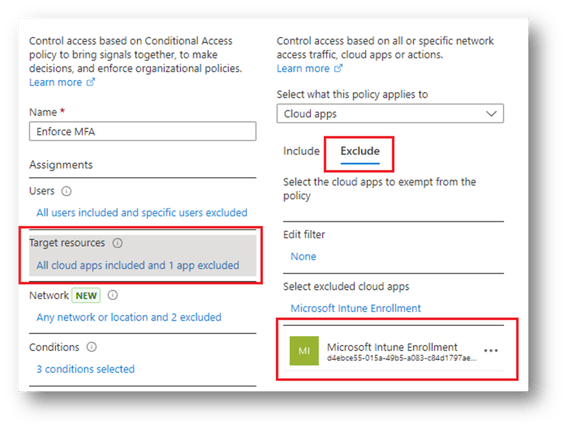 Conditional Access Policy: Excluding Intune Enrollment from MFA Requirements
If Microsoft Intune Enrollment app is missing you may need to add it via Microsoft Graph:
Connect-MgGraph -Scopes "Application.ReadWrite.All"
New-MgServicePrincipal -AppId “d4ebce55-015a-49b5-a083-c84d1797ae8c”
💡MFA-backed PRTs and delayed enrollment
If the Microsoft Intune Enrollment app is not excluded from your Conditional Access MFA policies, the initial background enrollment will fail. This occurs because the system lacks the MFA-backed Primary Refresh Token (PRT) required to authorize the registration.
However, this is not a permanent failure. The PowerSyncPro Migration Agent is designed to continuously re-attempt the Intune enrollment every hour. Once the user satisfies an MFA prompt during their normal workflow—such as signing into a Microsoft 365 desktop application or setting up Windows Hello for Business (both of which generate the required PRT)—the requirement will be met. The system will then successfully enroll into Intune during the agent's next hourly retry.
2. MDM vs. WIP user scope conflicts
In the Entra portal (under Mobility (MDM and WIP)), the user logging into the device must be included in the MDM user scope (set to All or a specific group).
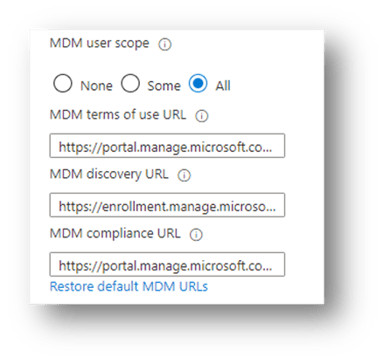 MDM User Scope: All users allowed to join devices MDM User Scope: All users allowed to join devices
|
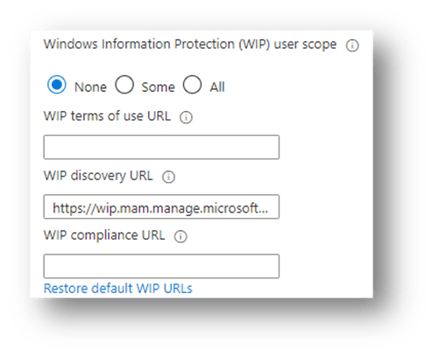 WIP User Scope WIP User Scope
|
⚠️ WIP precedence
If a user is included in both the MDM user scope and the Windows Information Protection (WIP) user scope, WIP takes precedence. When this happens, Windows Information Protection policies are applied, but the actual Intune MDM enrollment will be skipped entirely. Ensure the WIP user scope is set to None (or that migrating users are excluded from it) if you require full MDM enrollment.
3. Device platform restrictions (personal vs. Corporate)
By default, Intune may block personally owned devices from enrolling. Because the automated migration process triggers the Intune registration using the logging-in user's credentials, the Intune backend initially evaluates this action as a "personal" enrollment attempt.
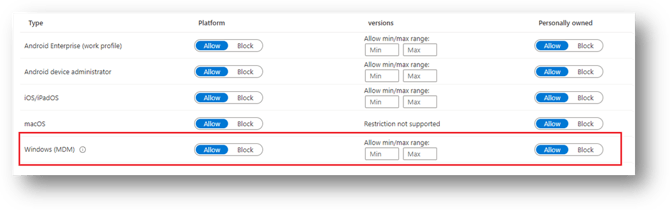
Therefore, your Intune Device Platform Restrictions must be configured so that Personally owned Windows devices are set to Allowed. If your organization is unable to allow personal device enrollments, see below for an alternative using Intune Corporate Identifiers.
💡 The final enrollment state & scoping
- Corporate Status: Even though the "Personally owned" restriction must be lifted to allow the registration to initiate, the final resulting enrollment will automatically be recorded as a Corporate enrollment in your Intune portal.
- Security Scoping: You do not need to open up personal device enrollments for your entire tenant. To maintain strict security, you can create a custom Device Platform Restriction policy that allows personal Windows enrollments and assign it only to a specific security group containing the users who are currently migrating.
- Timing: Personal device enrollments must be enabled for the duration of migration. Once migrations are complete and devices have enrolled to Intune, policies can be reverted. Devices that have already been enrolled will remain enrolled.
Alternative: Pre-register devices via Corporate Device Identifiers
Some organizations cannot enable personally owned Windows enrollments at all — even when scoped to a migration security group — due to internal security or compliance policy. For these tenants, Microsoft offers an alternative path: pre-register migrating devices with Corporate Device Identifiers in Intune before the migration runs. When the device subsequently attempts auto-enrollment, Intune matches it against the identifier list and treats the enrollment as corporate, bypassing the personal-device platform restriction entirely.
⚠️ OS build requirements
Windows corporate identifiers using manufacturerModelSerial are only supported on:
- Windows 11 version 22H2 or later, with KB5035942 (OS build 22621.3374 / 22631.3374) or later
- Windows 10 version 22H2, with KB5039299 (OS build 19045.4598) or later
On earlier builds, Windows does not report manufacturer and model to Intune, the identifier match silently fails, and the device is rejected with the same 0x80180014 exit code described above. Verify cumulative update state across your migration cohort before relying on this method.
What to collect
Each Windows identifier is a single comma-separated string of Manufacturer,Model,SerialNumber, read from the device itself.
Microsoft publishes a one-line snippet to retrieve the exact values Intune will attempt to match:
(Get-WmiObject -Class Win32_ComputerSystem | ForEach-Object {$_.Manufacturer, $_.Model, (Get-WmiObject -Class Win32_BIOS).SerialNumber -join ',' })
Run this on a representative device first — OEM-reported manufacturer and model strings are not always what you'd expect (e.g. "LENOVO" vs "Lenovo", or model strings that include trailing whitespace), and the match is exact. Remove all periods, if applicable, from the serial number before you add it to the file or utilize the API to upload it.
Loading identifiers into Intune
Identifiers can be added through any of three methods, in increasing order of automation:
- CSV upload via the admin center — Devices → Enrollment → Corporate device identifiers → Add → Upload CSV file, selecting Manufacturer, model, and serial number (Windows only). Suitable for smaller batches; note Intune limits Windows identifier uploads to 10 CSV files in the admin center.
- PowerShell against Microsoft Graph — appropriate for larger fleets or where the identifier list is generated from another inventory source (CMDB, Configuration Manager, Autopilot hardware report, etc.).
- Direct Microsoft Graph API calls — for full automation as part of a pre-migration prep workflow.
For the Graph-based options, the relevant endpoint is POST /beta/deviceManagement/importedDeviceIdentities/importDeviceIdentityList, the identifier type is manufacturerModelSerial, and the calling principal requires the DeviceManagementServiceConfig.ReadWrite.All permission. Refer to the Microsoft documentation linked at the end of this section for the full schema.
⚠️ Timing matters
The corporate identifier must exist in Intune before the device's first post-migration user logon. The auto-enrollment scheduled task runs once at logon, and if no matching identifier is present at that moment, Intune evaluates the attempt as a personal enrollment and the platform restriction blocks it.
If identifiers are loaded after a failed first attempt, the PowerSyncPro Migration Agent's hourly retry will eventually succeed — but the agent logs will record 0x80180014 failures in the interim, which can be misleading during triage. We recommend loading identifiers as a pre-migration step, alongside other tenant prep work.
Verification
After upload, confirm the identifier appears under Devices → Enrollment → Corporate device identifiers. The Status column will show Not contacted until the device enrolls, then transition to Enrolled. A status of Failed after a known enrollment attempt usually indicates a manufacturer/model string mismatch — re-run the WMI snippet on the actual device and compare character-for-character.
References
- Identify devices as corporate-owned (Microsoft Learn)
- importDeviceIdentityList action (Microsoft Learn)
4. Missing DNS records (CNAME)
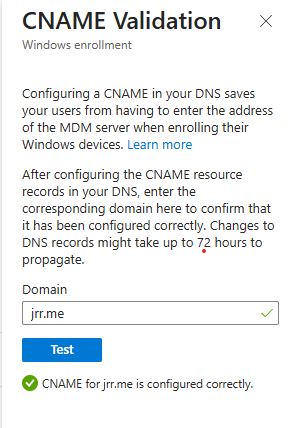
Auto-enrollment requires proper DNS routing. Ensure your domain has the correct CNAME records pointing to Microsoft's enrollment servers (enterpriseenrollment.windows.net and enterpriseenrollment-s.manage.microsoft.com). You can validate these records directly within the Intune Admin Portal under Enrollment options -> CNAME Validation.
5. Licensing requirements
The user logging into the migrated workstation for the first time must be assigned a valid license that includes Intune (such as an EMS or Microsoft 365 Business Premium/E3/E5 license) to be allowed to enroll devices. You can also license users with an Intune Plan 1 license to allow for Intune Enrollment.
OS Support & Requirements
Supported editions for Intune enrollment
- Windows 10/11 Pro
- Windows 10/11 Enterprise
- Windows 10/11 Education
- Windows 10/11 Pro Education
Enrollment methods and version requirements
Azure AD Join + Automatic Enrollment
Requires Windows 10, version 1709 or later.
Hybrid Azure AD Join
Supported on Windows 10, version 1607 or later but works best with version 1709+.
Bring Your Own Device (BYOD)
Personal devices can be enrolled using the Company Portal app with Windows 10, version 1709 or later.
Diagnostics & event logs
When troubleshooting enrollment issues, you should check both the PowerSyncPro console and the native Windows Event Viewer on the affected workstation.
1. PowerSyncPro agent logs
The PowerSyncPro Agent Logs console provides centralized, high-level visibility into the hourly enrollment attempts.
- Success: If the background registration succeeds, the console will output:
"Intune enrollment completed". - Error 0x80180014 (Personal Devices Blocked): You will see
Intune enrollment failed with exit code: 0x80180014if your Intune Device Platform Restrictions are configured to block personally owned Windows devices. - Error 0x8018002A (No MFA Token): You will see
Intune enrollment failed with exit code: 0x8018002Aif the Microsoft Intune Enrollment cloud app is not excluded from your Conditional Access policies, blocking the system from silently obtaining the required PRT.- This will clear once the user logs into Entra with MFA and gets an MFA-backed PRT and DeviceEnroller is triggered by the Migration Agent.
- Error 0x80180031 (MDM Not Configured): You will see
Intune enrollment failed with exit code: 0x80180031(MENROLL_E_MDM_NOT_CONFIGURED) when the device is missing the MDM Enrollment URLs required to reach Intune. This is most often caused by the user falling outside the MDM user scope in Entra ID, missing/misconfigured CNAME records, or theMdmEnrollmentUrl,MdmTermsOfUseUrl, andMdmComplianceUrlregistry values being absent underHKLM:\SYSTEM\CurrentControlSet\Control\CloudDomainJoin\TenantInfo\<TenantID>. You can confirm the registry state by runningdsregcmd /statuson the workstation and reviewing the Device Management section — if the MDM URLs are blank, the device has no enrollment endpoint to call.- This will clear once the MDM scope, CNAME records, and tenant registry values are corrected and DeviceEnroller is triggered by the Migration Agent on its next hourly retry.


2. Native Windows MDM logs
If the workstation has temporarily lost communication with the PSP Server, or if you need deeper OS-level diagnostics, check the local event logs on the workstation:
- Open the Windows Event Viewer and navigate to:
Applications and Services Logs > Microsoft > Windows > DeviceManagement-Enterprise-Diagnostics-Provider. - Check the Admin and Enrollment logs for specific Error or Warning events generated at the time of user logon.
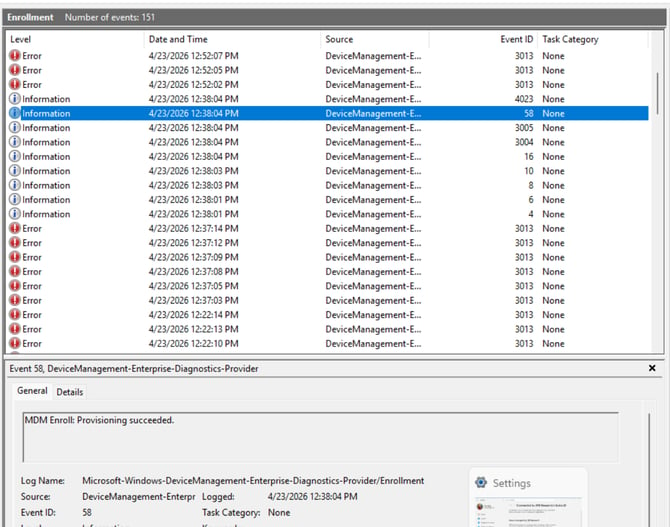 Windows Event Logs - Applications and Services Logs > Microsoft > Windows > DeviceManagement-Enterprise-Diagnostics-Provider > Enrollment: Successful Enrollment
Microsoft Learn resources
For deeper troubleshooting of native Windows enrollment behaviors and a full index of MDM exit codes, refer to the following official Microsoft documentation:
- Troubleshoot device enrollment in Microsoft Intune
- Troubleshoot Windows device enrollment errors in Microsoft Intune